
In this article, you will learn how to set up order tracking in our Help widget
Set up order tracking
On the left-navigation menu, go to Chat widget > Module setting
- Step 1: Turn on the toggle for Order tracking module
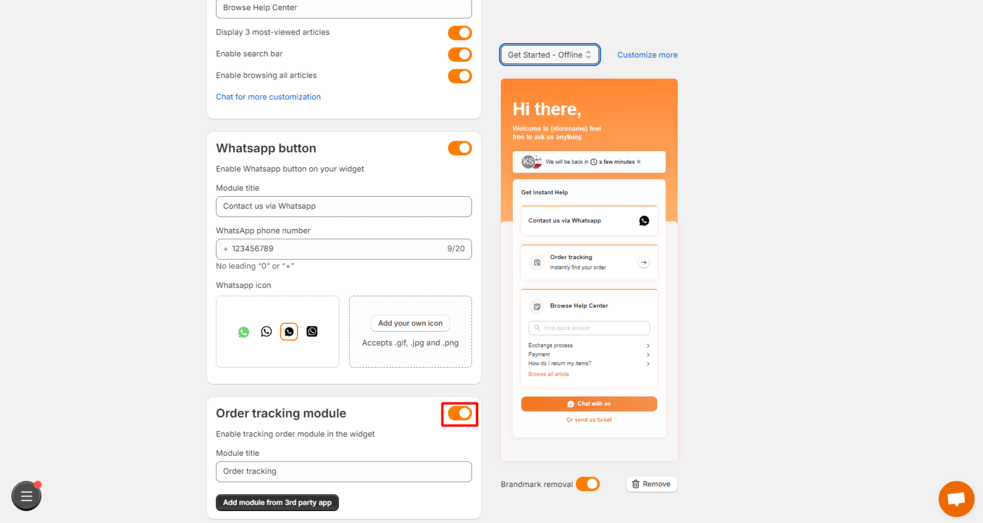
- Step 2: Enter the module title. For example, if you enter ‘Order tracking,’ it will appear the same in your live store widget.
Note: You can customize sub-headings or other fields in Order tracking module by going to Translation > Order Tracking module.
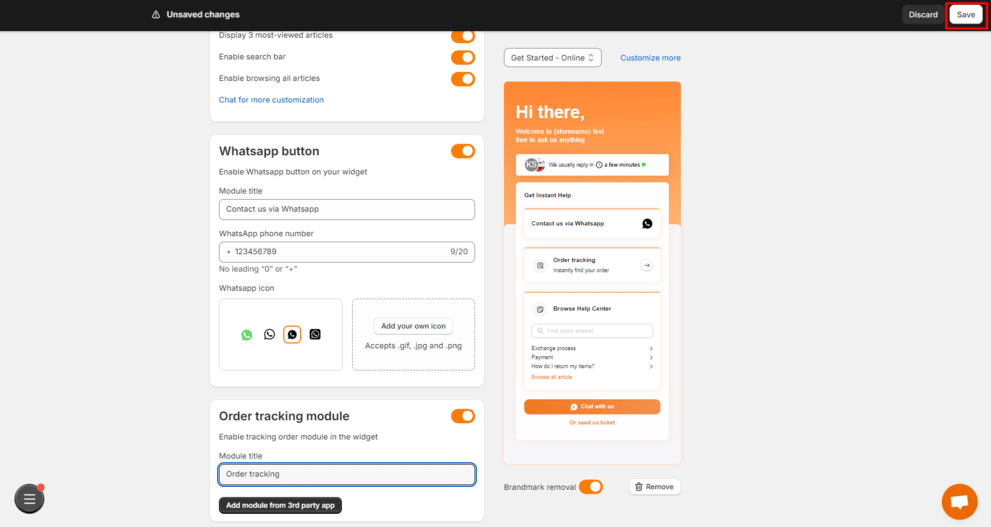
- Step 3: Click ‘Save’ in the Save bar to apply your settings
How your customers can track orders
Your customers can now track their orders within the help widget on your website
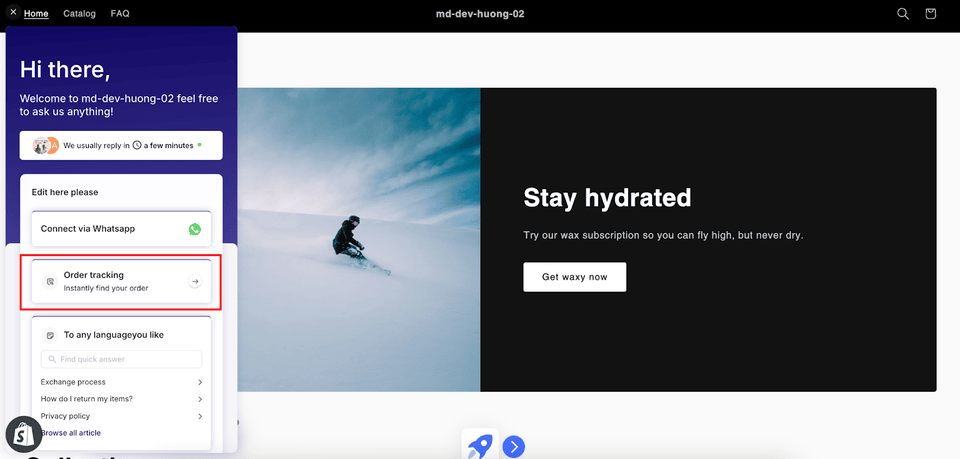
There are 2 ways for your customers to track orders themselves:
- Option 1: Enter the order number
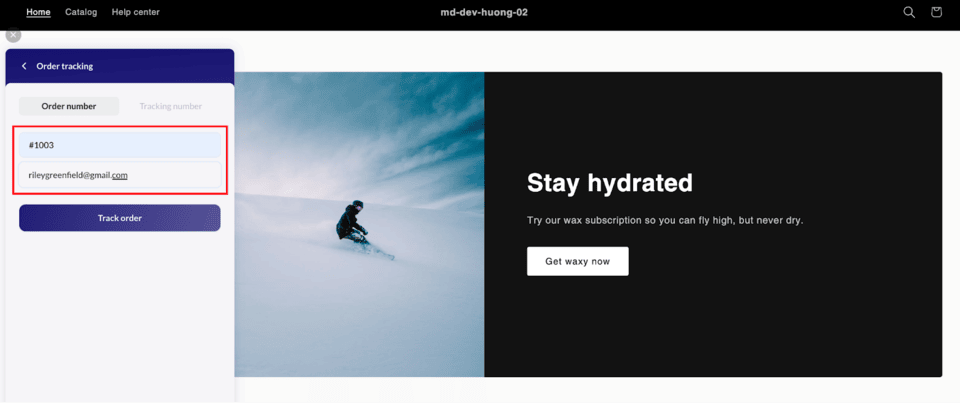
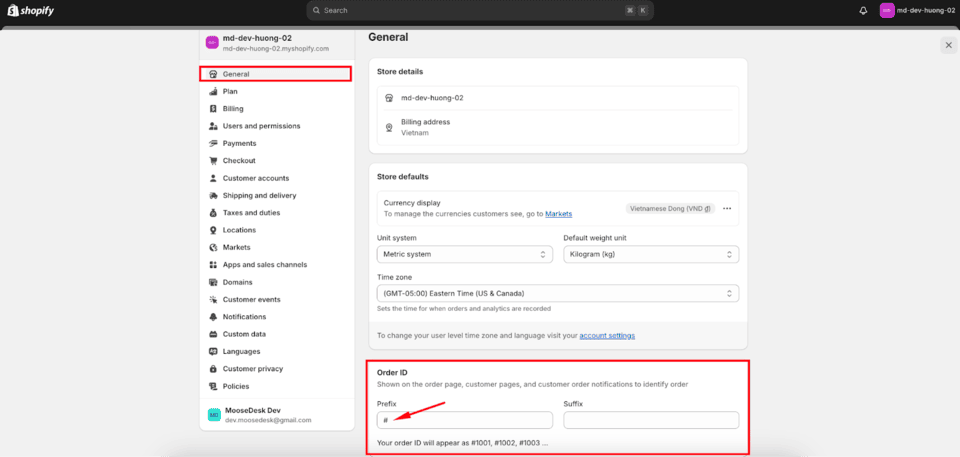
Note: Make sure to inform your customers about the correct Shopify order number format. For example, if the order number is #1003, they must enter #1003, not 1003.
You can edit the Shopify order number format by going to Settings at the bottom left > Select General > Edit the Order ID.
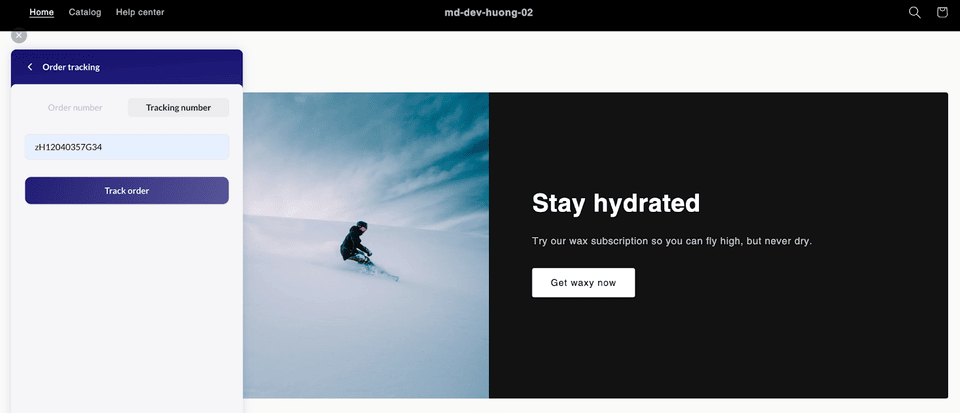
- Option 2: Enter the tracking numbers
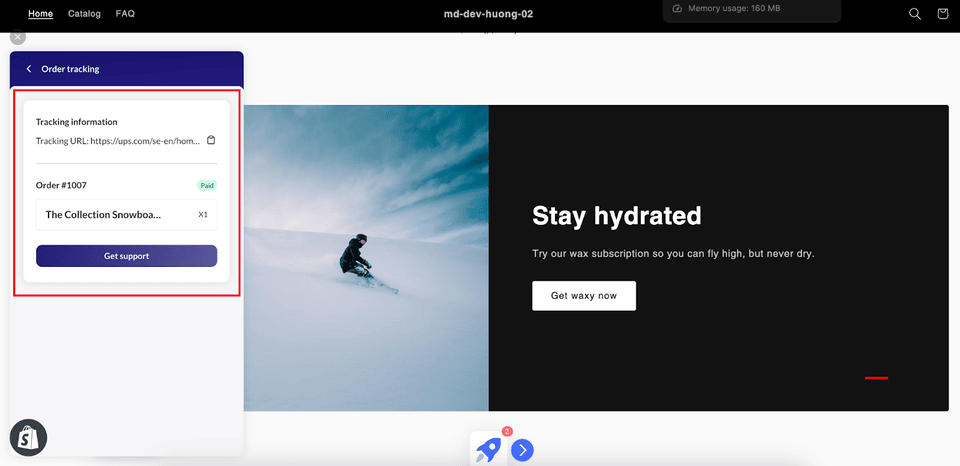
With either option, if the order can be found, it will show the tracking link and order information. Customers can copy this link to check the order status themselves.
To view more tracking details, such as order status, courier, customer address, and tracking number, explore integrating TrackingMore’s features into our widget.
Support channels
If you ever need assistance, visit our Help Center for comprehensive guides or watch detailed video tutorials on our Youtube channel.
At MooseDesk, we’re always here to help. Our dedicated email and live chat teams are available around the clock. Drop us an email at help@moosedesk.com, or click the Live Chat icon located at the bottom left corner of the MooseDesk app, our official website, and even within this Help Center.
Was this article helpful?
How can we help?
Name: *
Email: *
Message: *
How to set up redirect buttons within MooseDesk widget How to set up and search for FAQ in widget
Powered by BetterDocs
Unlock the potential of great customer service. Together.
Free plan available. No credit card required.
1-min setup. 24/7 Support.
Feel unsure? Book a demo
Need help?
Email help@moosedesk.com — we usually reply in minutes.