
These features allow you to enhance customer engagement and encourage purchases by sharing products and discount offers directly in your conversations.
While you can send discounts via both email and live chat, the Send Products feature is only applicable to live chat conversations.
Send products
Step 1: Open “Inbox” tab and click on a conversation
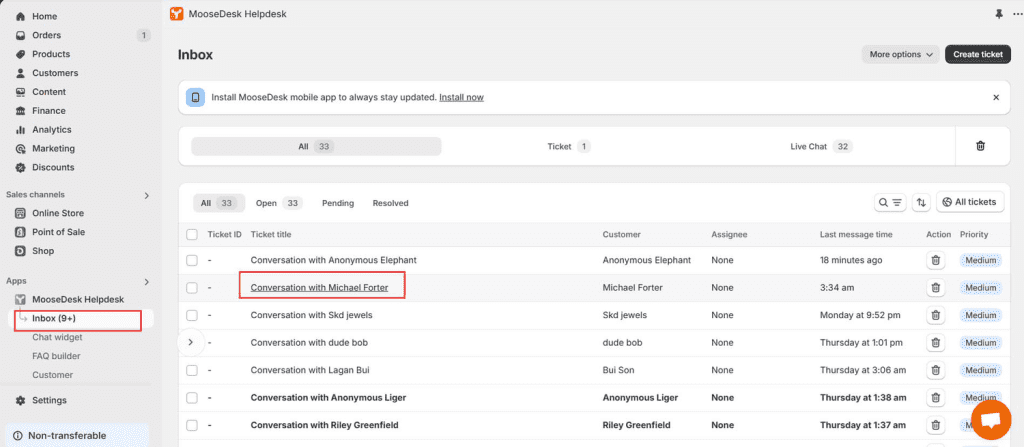
Step 2: Go to toolbar and click the button “Send products”
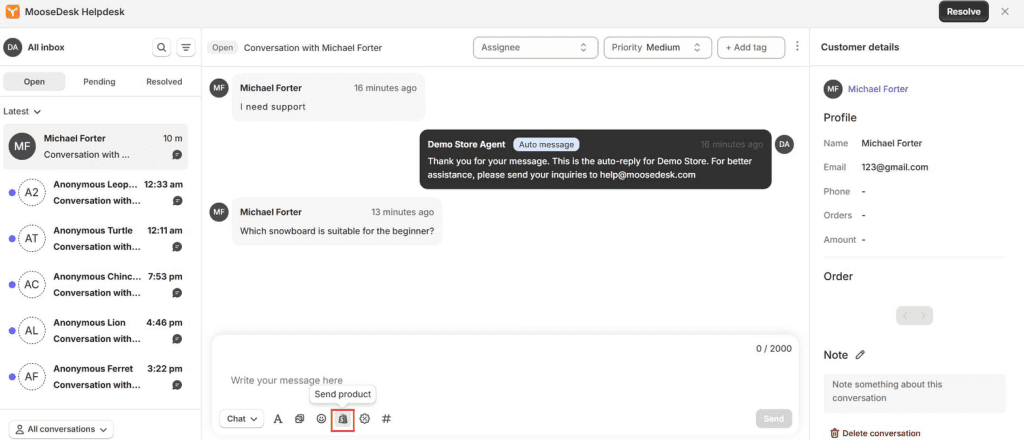
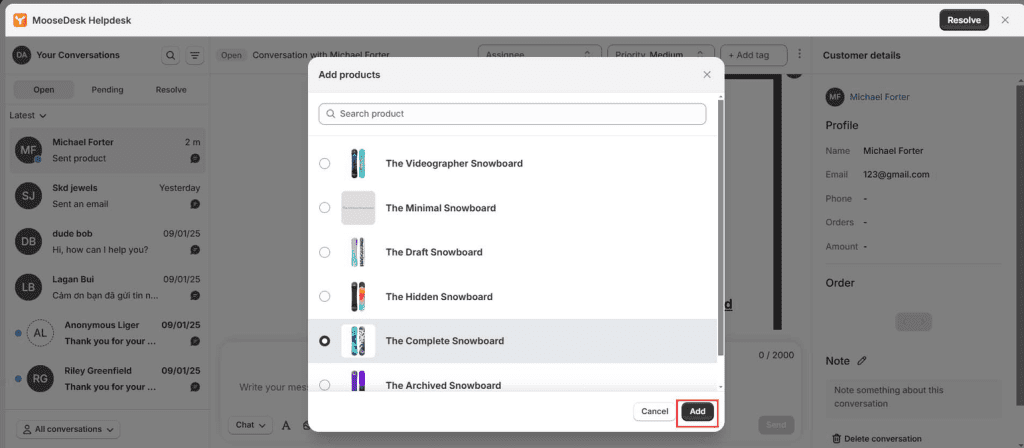
Step 3: Select the product and press “Add”
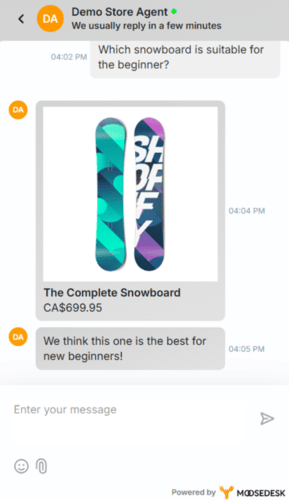
Your customer will receive a product card, looking like this:
Send discounts
Step 1: Open Inbox tab and click on a conversation
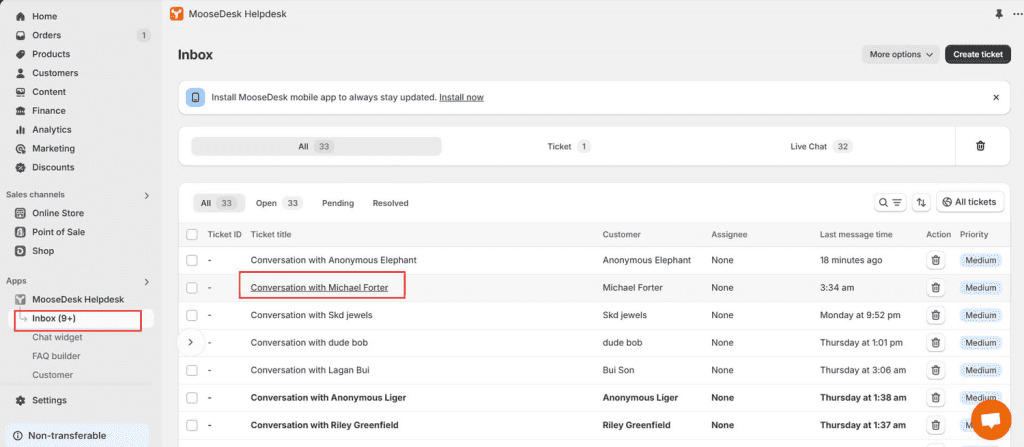
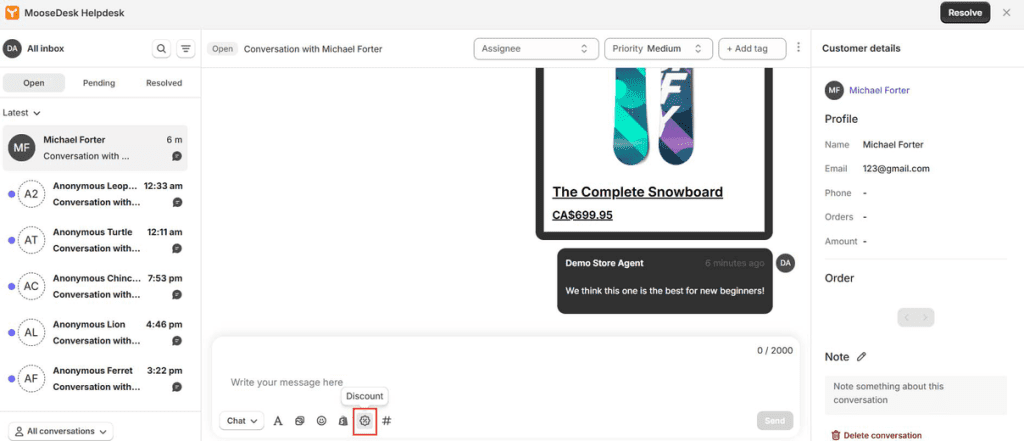
Step 2: Go to toolbar and click the button “Send discounts”
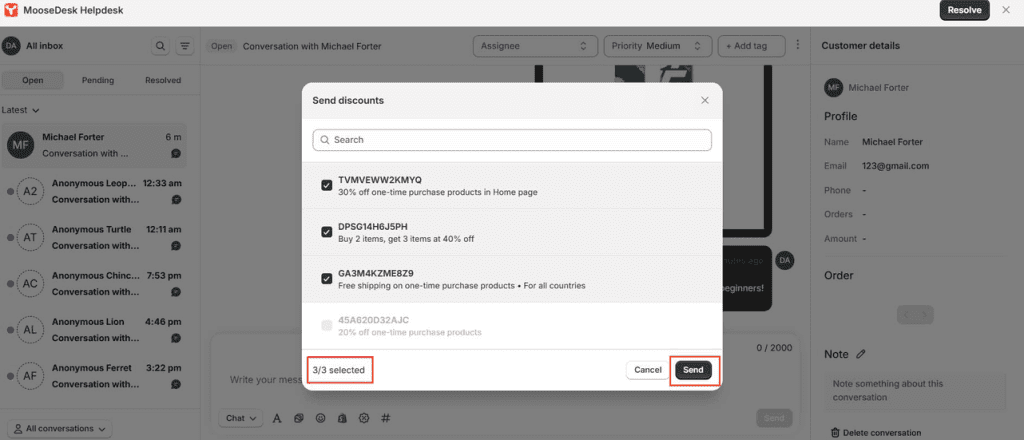
Step 3: Select discount and press “Send”
Note:
- You can send up to 3 discounts for each message.
- There are two types of discounts: automatic code and discount code:
- Discount code: This code directs customers to the product page where it is applicable and requires customers to fill in the code when checkout
- Automatic Discount: This code is automatically applied at checkout (but customers still need to notice which product is applicable)
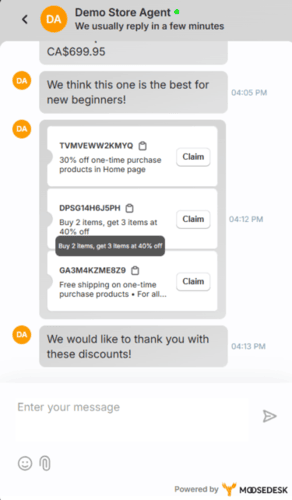
Your customers will then receive a discount message illustrated as below:
Support channels
If you ever need assistance, visit our Help Center for comprehensive guides or watch detailed video tutorials on our Youtube channel.
At MooseDesk, we’re always here to help. Our dedicated email and live chat teams are available around the clock. Drop us an email at help@moosedesk.com, or click the Live Chat icon located at the bottom left corner of the MooseDesk app, our official website, and even within this Help Center.
Was this article helpful?
How can we help?
Name: *
Email: *
Message: *
How to set up WhatsApp button skin How to connect social channels to MooseDesk
Powered by BetterDocs
Unlock the potential of great customer service. Together.
Free plan available. No credit card required.
1-min setup. 24/7 Support.
Feel unsure? Book a demo
hello world
Need help?
Email help@moosedesk.com — we usually reply in minutes.