
This guide walks you through testing responses and training the chatbot with your data to ensure accurate answers before launching.
Test Chatbot Al
You can begin testing the Chatbot AI after successfully adding and configuring your data sources. This ensures the chatbot is trained with your content and can provide accurate and relevant responses during testing.
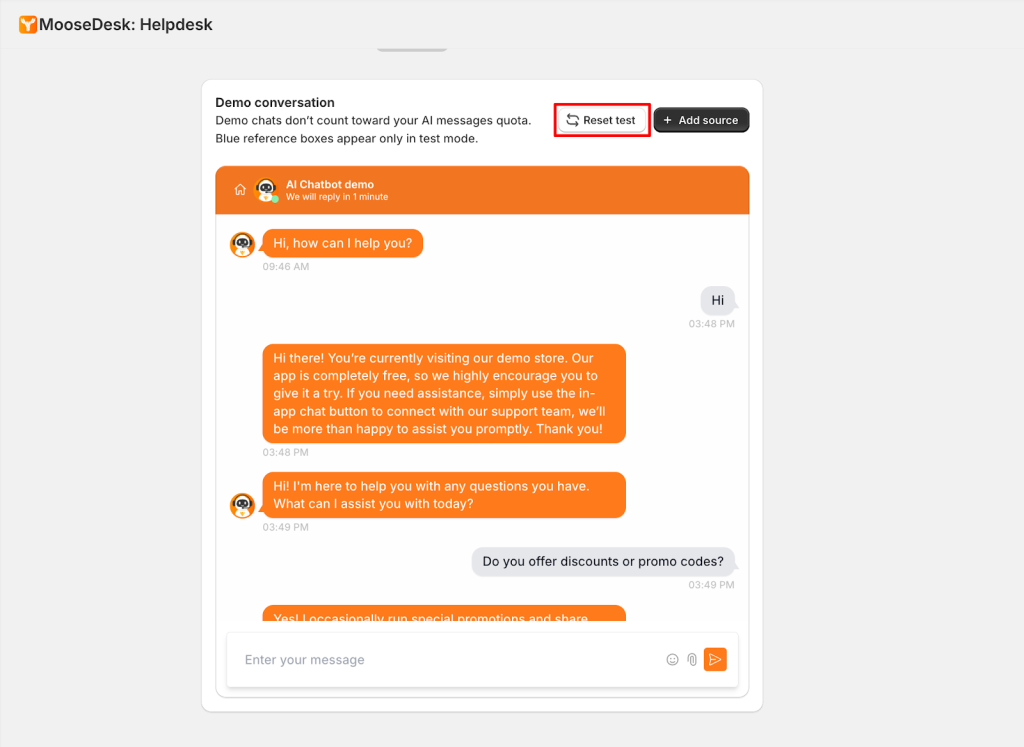
You can also click on the “ Reset test” button at the top right corner to clear all the previous conversation and start with a new one.
Review sources
To review the data sources, please provide the specific question that was added to your FAQ or Q&A. This allows the system to identify and display the source from which the chatbot AI generated the response.
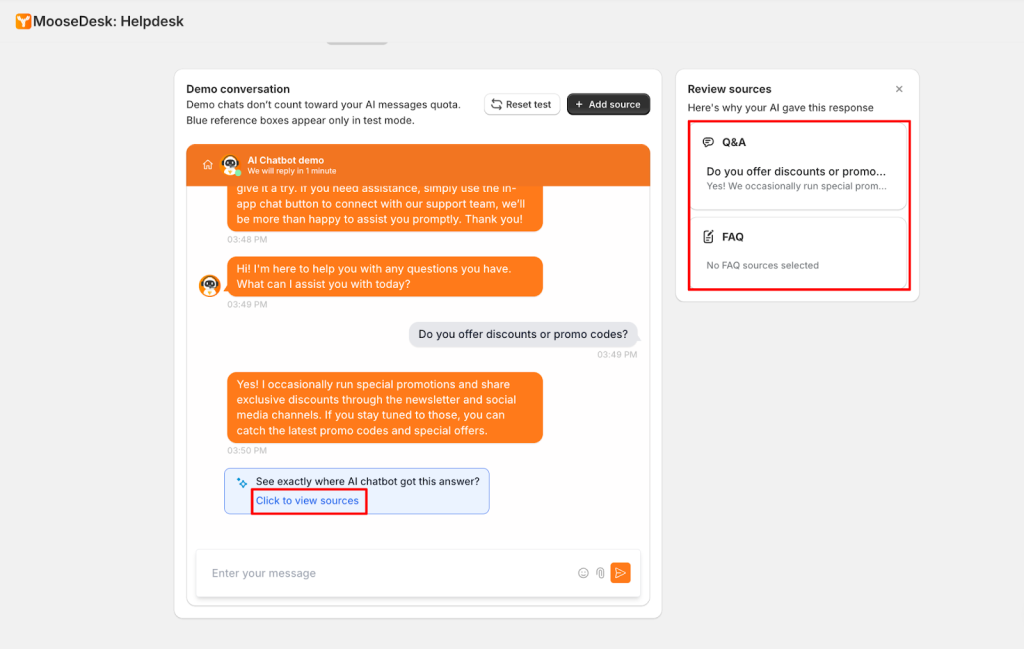
Note: Demo chats don’t count toward your AI messages quota. Blue reference boxes appear only in test mode.
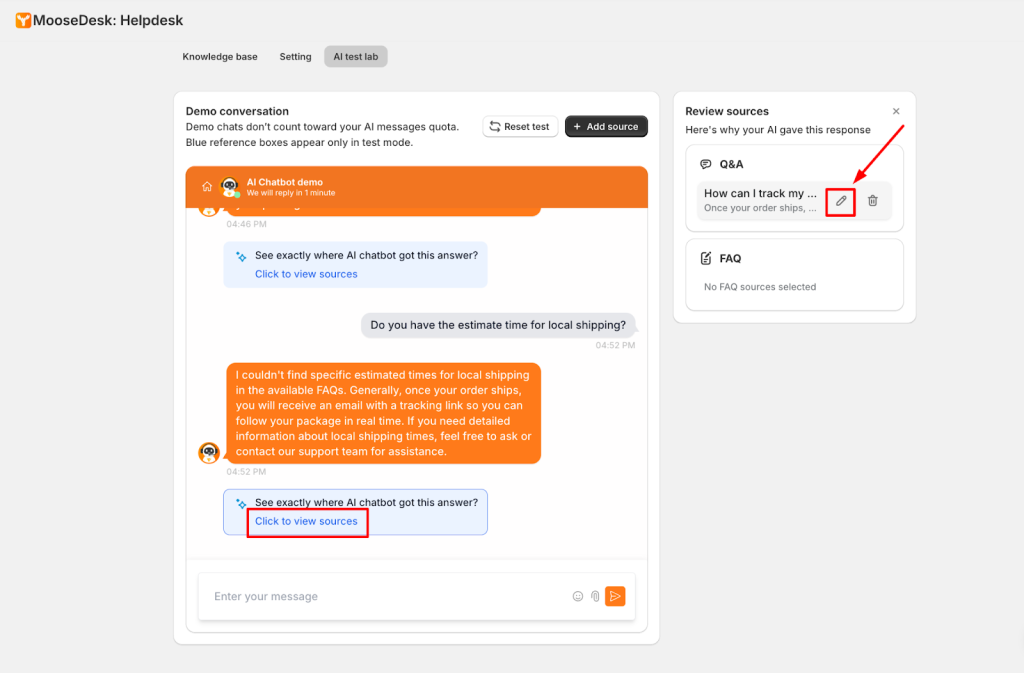
Additionally, while testing previously added data sources in the Chatbot AI Test Lab, you can edit Q&A and FAQ entries directly by hovering over the data source cards.
This allows you to feed new or updated information to the Chatbot AI, including questions it was previously unable to answer accurately.
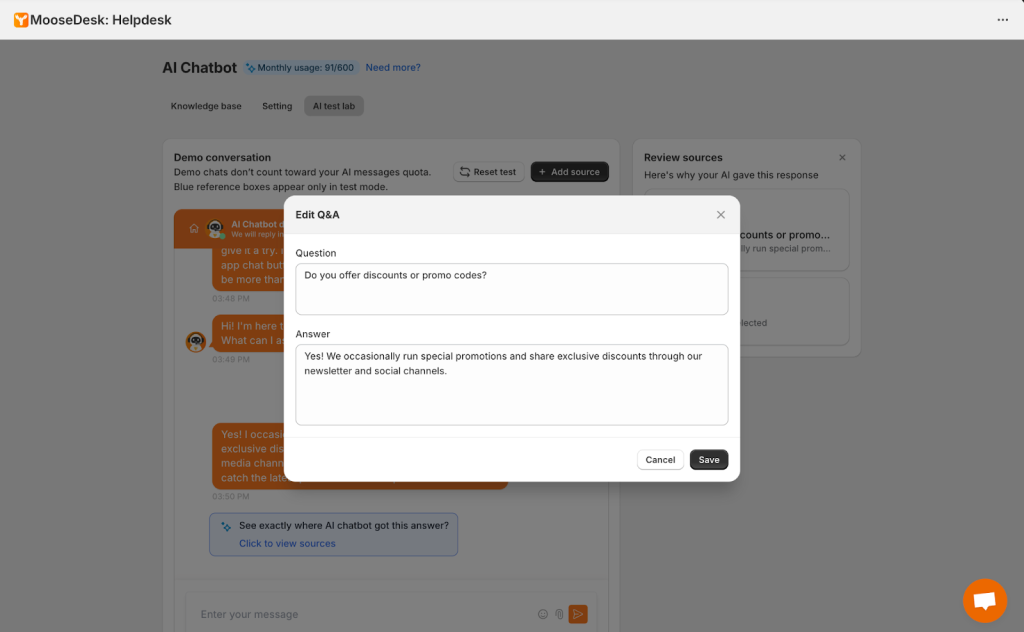
Alternatively, you can add a data source directly by clicking the Add Source button located in the top-right corner, next to Reset Test.
Create an answer to train your AI Chatbot
If the chatbot cannot find a relevant answer from your data sources, you can manually create an answer to train it directly.
How it works
When a question has no matching information, the AI will show “No relevant information found” along with a Create answer option:
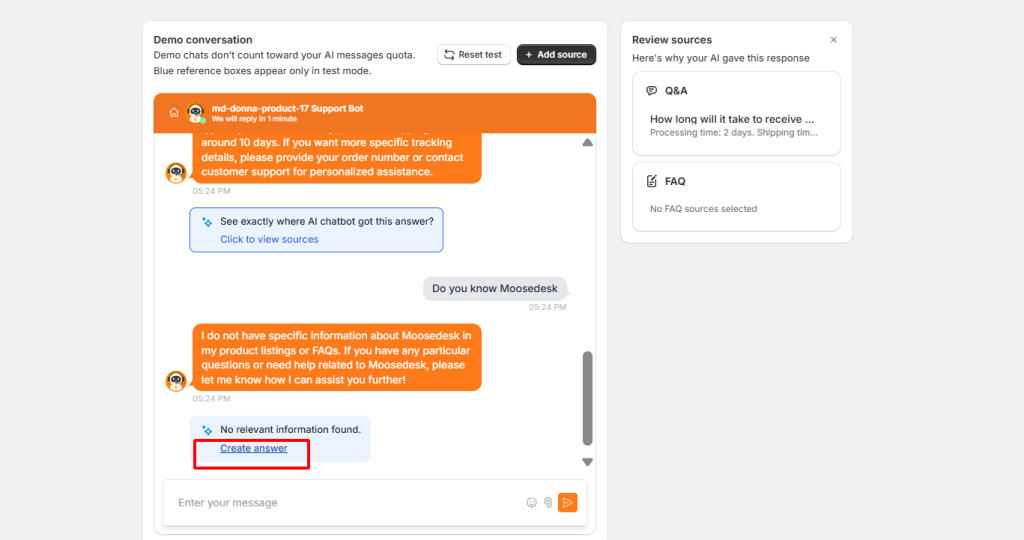
This helps you quickly fill knowledge gaps and improve AI accuracy before going live.
Support Channels
If you ever need assistance, our Help Center is packed with comprehensive guides and tutorials.At MooseDesk, we’re always here to help. Our dedicated email and live chat teams are available around the clock. Drop us an email at help@moosedesk.com, or click the Live Chat icon located at the bottom left corner of the MooseDesk app, our official website, and even within this Help Center.
Was this article helpful?
How can we help?
Name: *
Email: *
Message: *
How to configure the conditions for agent transfer? How to add data for AI chatbot?
Powered by BetterDocs
Unlock the potential of great customer service. Together.
Free plan available. No credit card required.
1-min setup. 24/7 Support.
Feel unsure? Book a demo
hello world
Need help?
Email help@moosedesk.com — we usually reply in minutes.