
This article will help you understand how to add a MooseDesk FAQ Product to your online store.
IMPORTANT: Enable MooseDesk app in store theme
To display MooseDesk FAQ on your Online Store, you need to enable MooseDesk in your theme.
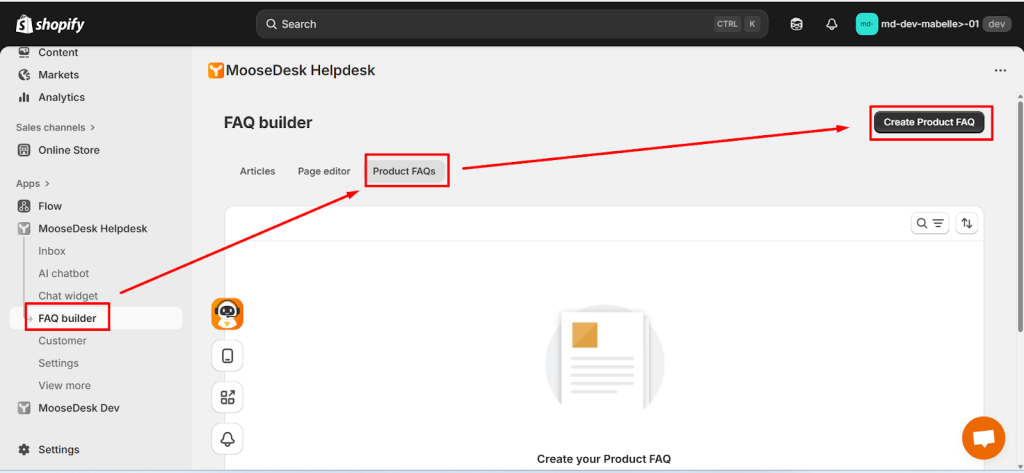
Step 1: Click on Create Product FAQ to make your own product FAQ.
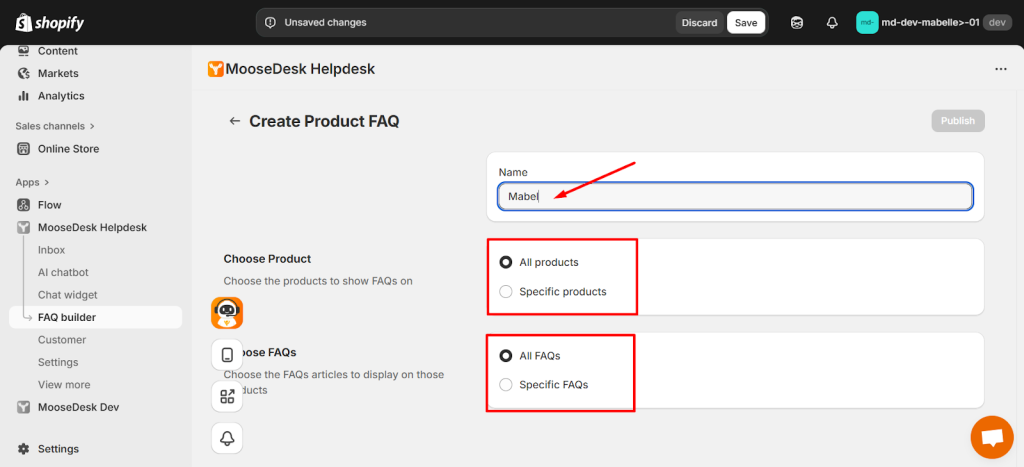
Step 2: Add name, choose products to show FAQs on and choose the FAQs articles to display on those products.
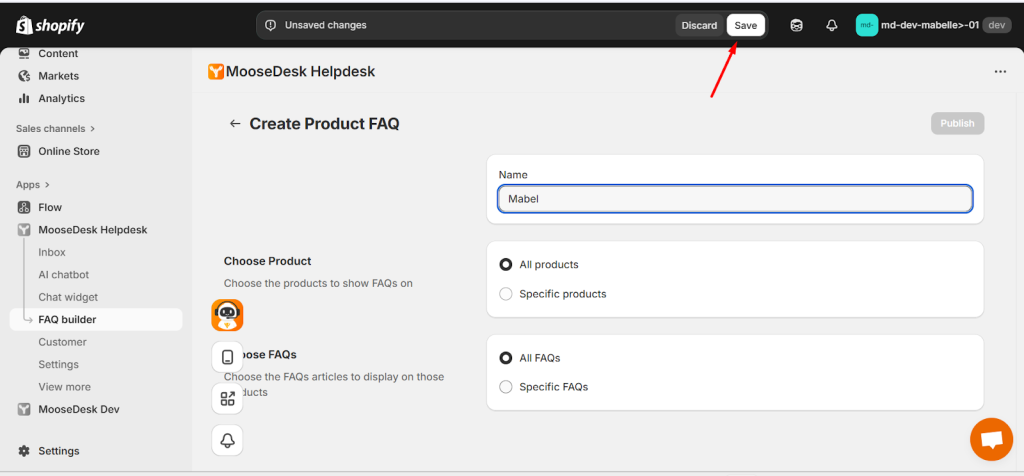
Step 3: Click Save after you have filled in the product FAQ name and chose all conditions.
Step 4: Click Publish to finish your set up.
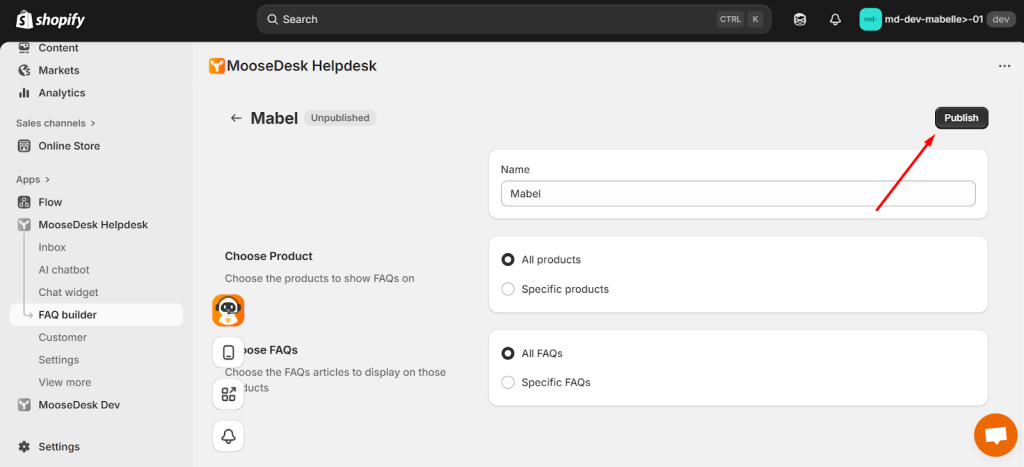
This is how it will looks like after you have done published the FAQ for your product.
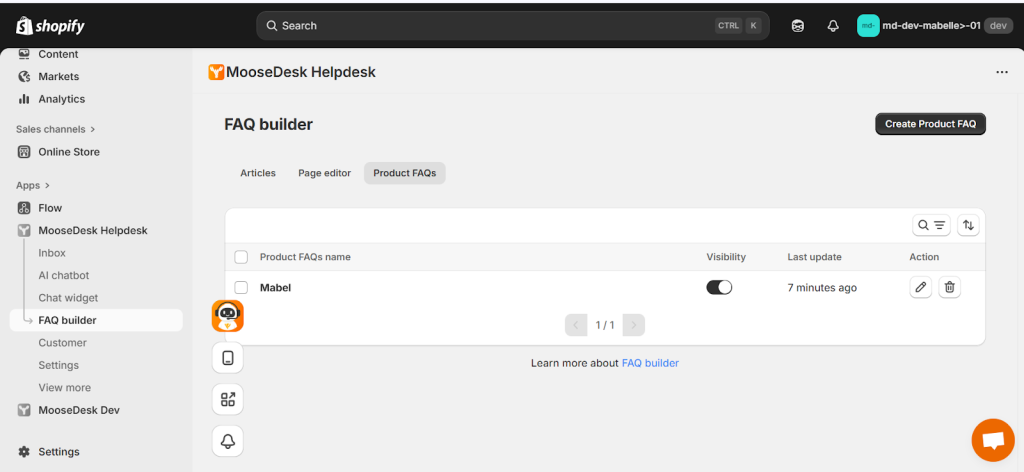
Remember: If you’ve already created a product FAQ with the “All Products” condition, you won’t be able to create another FAQ with the same condition. Additionally, you won’t be able to add an FAQ Block under any other products. If you’d like to do so, simply change the condition to “Specific Products” first, which will allow you to create new FAQs for other products.
Support Channels #
If you ever need assistance, our Help Center is packed with comprehensive guides and tutorials.
At MooseDesk, we’re always here to help. Our dedicated email and live chat teams are available around the clock. Drop us an email at help@moosedesk.com, or click the Live Chat icon located at the bottom left corner of the MooseDesk app, our official website, and even within this Help Center.