
1. Calculate your total monthly subscription #
MooseDesk uses a hybrid pricing model that combines two types of charges: Fixed Monthly Subscription Fee & Usage-Based Charges
Your total monthly subscription is calculated using this formula:

- Fixed Price is the base subscription cost of your plan (e.g., $19 for Starter, $49 for Growth, $249 for Business).
- Extra AI Replies is the number of AI chatbot replies exceeding your plan’s included amount
- Rate per Extra Reply is the cost applied to every AI reply exceeding the monthly limit for each plan.
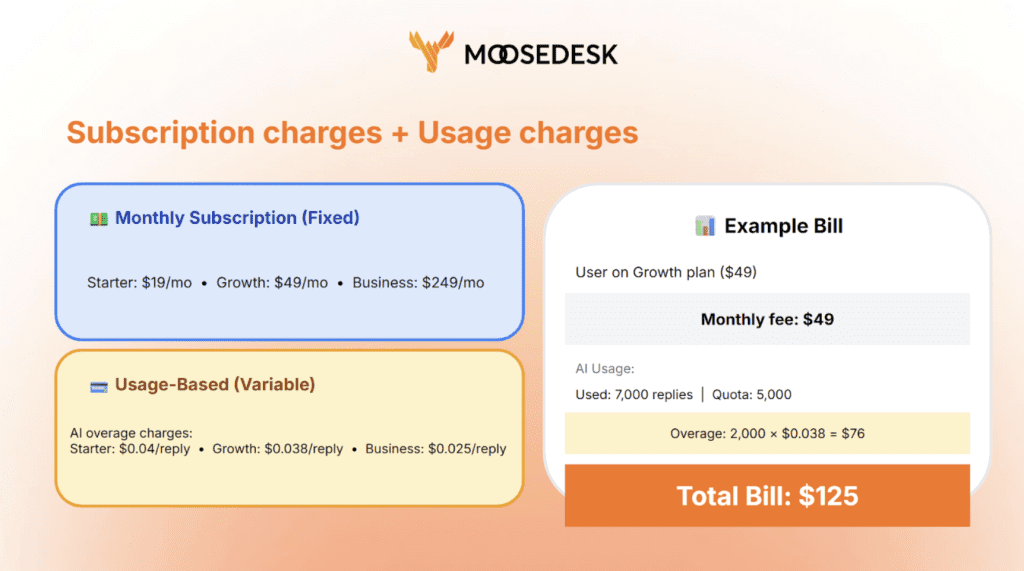
Imagine you’re on the Starter plan and your store’s AI chatbot handles 1,350 customer conversations in a month:
- Fixed price: $19 (which includes 1,000 free AI reply quota)
- Extra AI Replies: 1,350 – 1,000 = 350 replies
- Rate per extra reply: $0.04 × 350 = $14
Using the formula: Total monthly cost = Fixed Price + Additional AI Replies × Rate per Extra Reply = $19 + $14 = $33
In this case, your total monthly charge would be $33. With this usage-based pricing, you have more flexibility to manage costs based on your actual AI chatbot usage each month.
2. Managing your monthly price #
Total subscription fee summary #
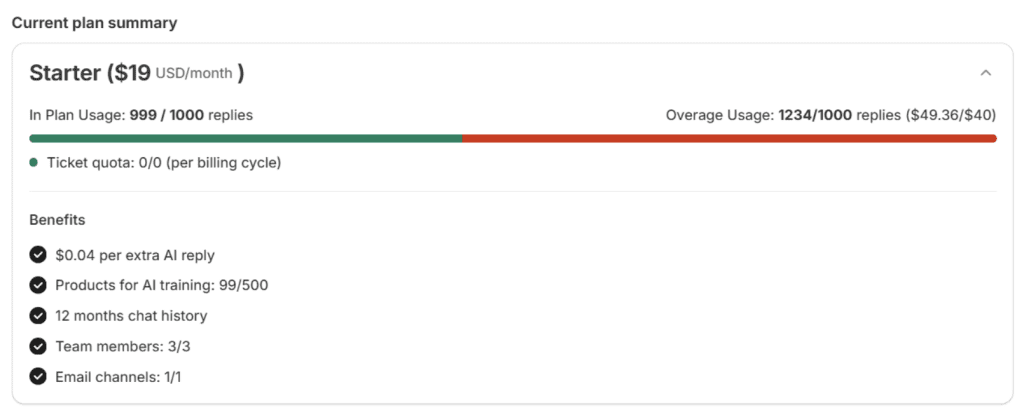
To check your total subscription fee every month, go to Dashboard > Current Plan for detailed records of your current AI reply usage, overage fees, and spending status.
- Current AI Replies: The accumulated AI chatbot replies processed within the current billing cycle.
- Overage Usage: The number of AI replies used beyond your included quota, which will be charged at your plan’s overage rate.
- Ticket quota: The number of tickets included in your plan. Only tickets with agent replies are counted.
- Remaining spending Limit: The remaining overage amount available for this billing cycle. MooseDesk will not charge you more than this amount. Once reached, the AI chatbot will temporarily stop responding until the next billing cycle.
Notification system #
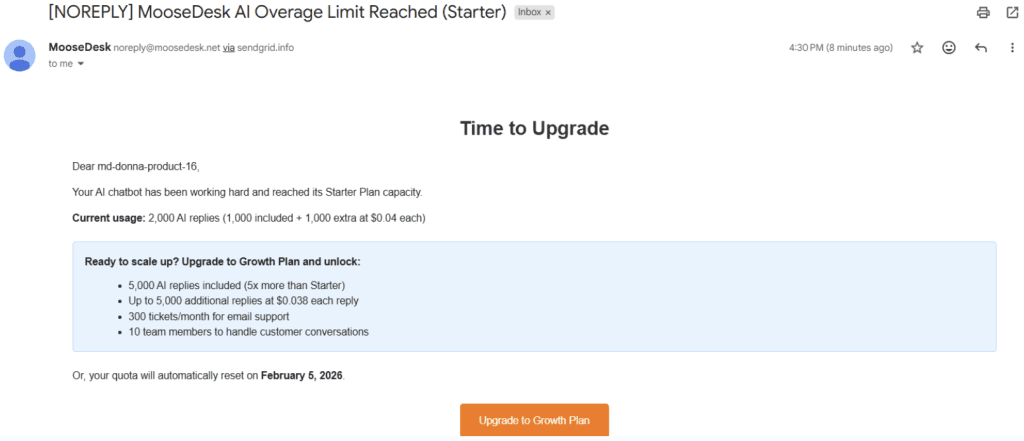
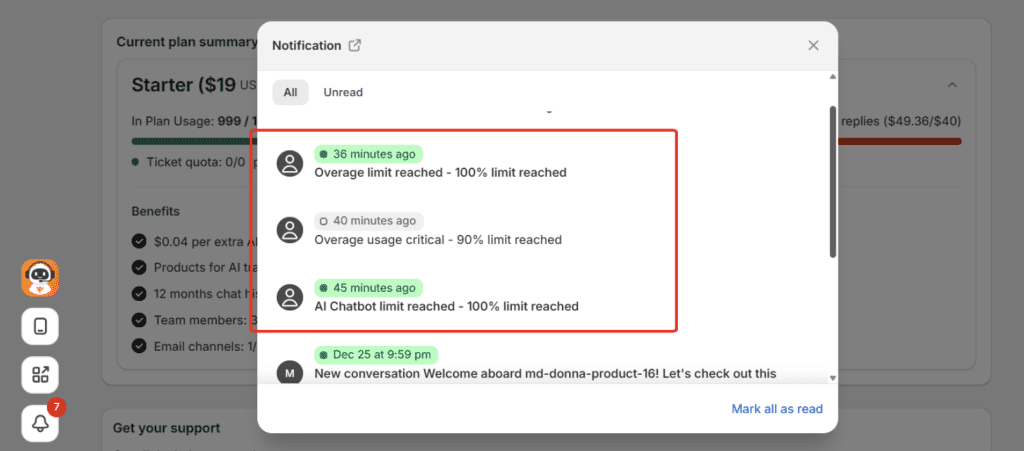
MooseDesk automatically monitors your usage and sends notifications when approaching quota limits. You will receive both in-app notifications and email alerts to the store owner at the following thresholds:
- 80% of quota: Early warning notification to help you plan ahead
- 90% of quota: Alert notification indicating limit is approaching
- 100% of quota: Critical notification when quota is fully consumed
These notifications apply to:
- AI chatbot quota (included replies in your plan)
- Overage quota (additional AI replies beyond included amount)
- Ticket quota (available support tickets for Growth and Business plans)
3. How Shopify billing cycle works #
MooseDesk billing follows Shopify’s standard app billing cycle. Understanding this is crucial to predicting your monthly costs. Here is the billing cycle timeline:
Day 1 of billing cycle: #
- You’re charged your fixed monthly subscription fee
- Your AI reply quota resets to 0
- Your included quota becomes available
- Your ticket quota resets (if applicable)
During the 30-day billing cycle: #
- AI replies are counted as your chatbot responds to customers
- Once you exceed your included quota, usage-based charges start accumulating
- You can monitor your usage in real-time from your dashboard
End of billing cycle (Day 30): #
- Total usage-based charges are calculated
- You’ll be charged for any overage usage in the NEXT billing cycle
- The cycle repeats: quotas reset and subscription fee is charged again
Important: Your monthly subscription fee and usage-based charges appear as separate line items on your Shopify bill. The subscription is charged at the START of each cycle, while usage charges from the previous cycle appear in your NEXT bill. For more details, please refer to this Shopify documentation.
Support channels #
If you ever need assistance, our Help Center is packed with comprehensive guides and tutorials.At MooseDesk, we’re always here to help. Our dedicated email and live chat teams are available around the clock. Drop us an email at help@moosedesk.com, or click the Live Chat icon located at the bottom left corner of the MooseDesk app, our official website, and even within this Help Center.