
This article will help you understand 3 main elements to set up FAQ, Contact Us pages with MooseDesk FAQ Builder
FAQ builder or FAQ page builder is a MooseDesk feature that helps you set up FAQ pages for your Shopify storefront within 5 minutes.
There are 02 main components involved when setting up an FAQ page using MooseDesk FAQ builder:
Articles #
Articles is a tab inside the MooseDesk FAQ builder where you can write, edit, publish, unpublish, or delete your FAQ articles.
To access Articles, click on FAQ builder from the app main navigation where Articles is the default opened tab.
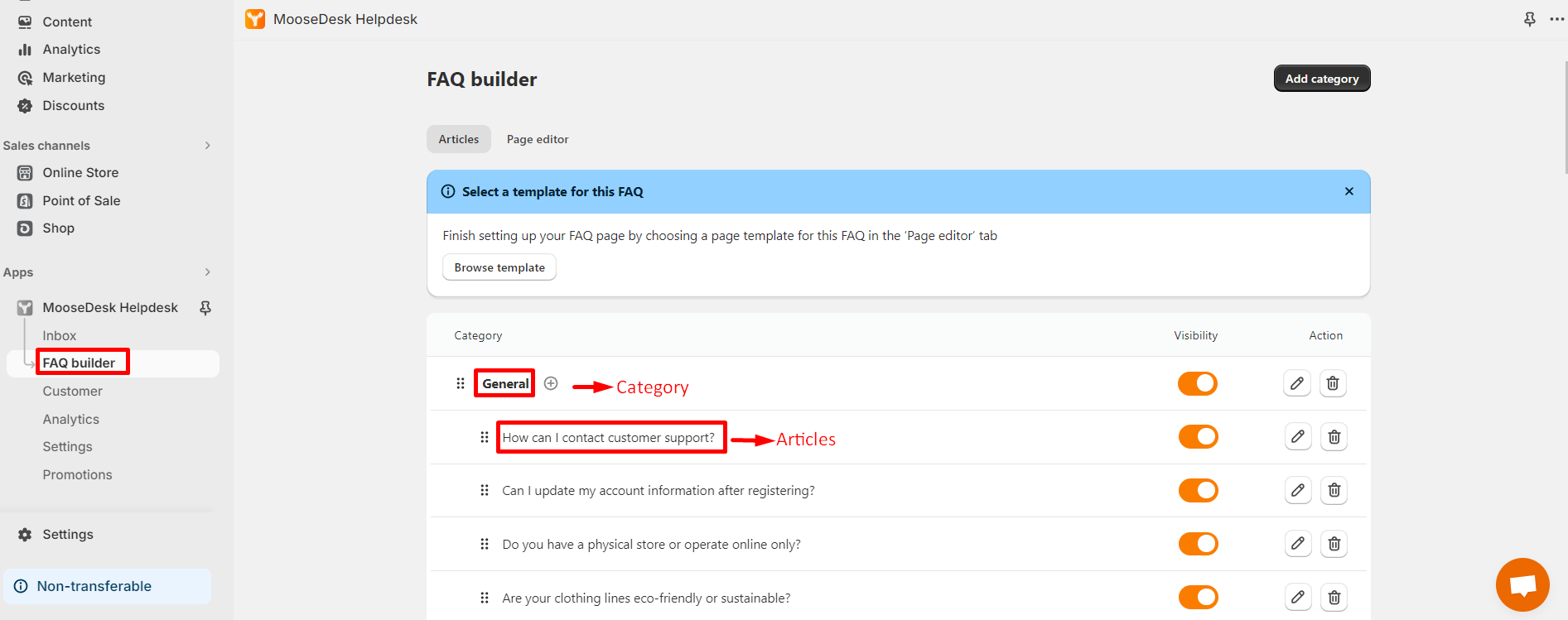
In the Articles tab, you will find two elements: Categories and Articles. To get started:
- Step 1: Create categories
- Step 2: Add articles to that category. Each article must be assigned to a specific category.
Note: Categories only show in FAQ templates that follow a container-grouping system.
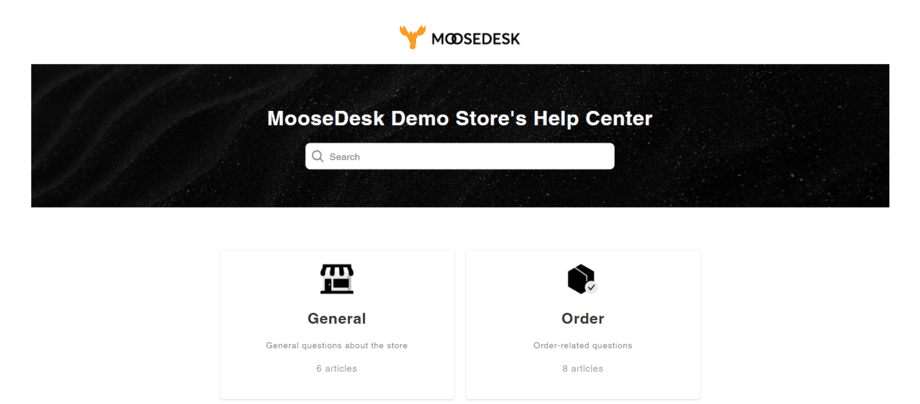
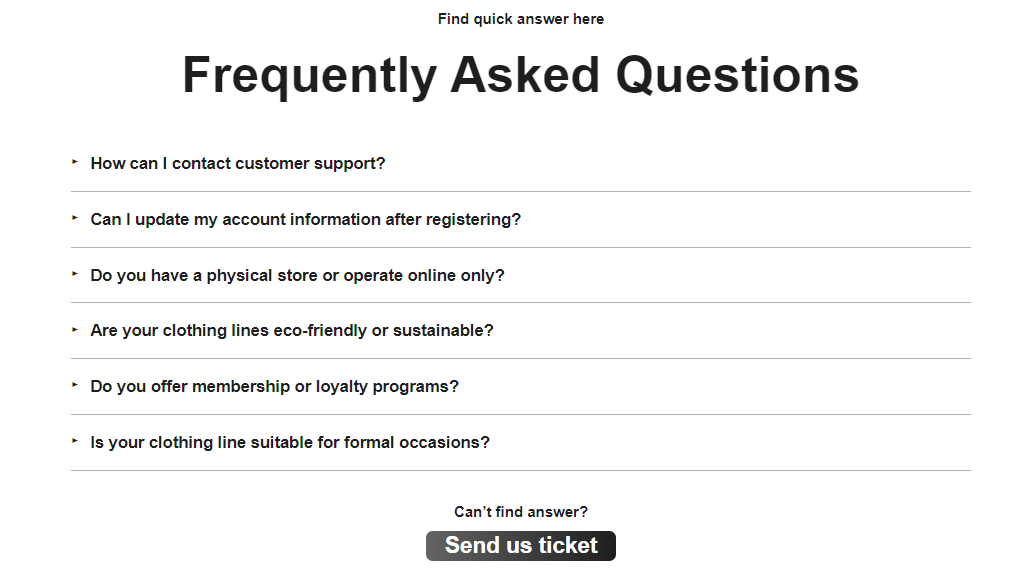
Turn on the toggle to publish your articles. Once published, articles will automatically be added to the published FAQ templates.
Page editor #
Page editor is a tab inside MooseDesk FAQ builder where you can create, edit, style, publish and unpublished FAQ/Contact us pages.
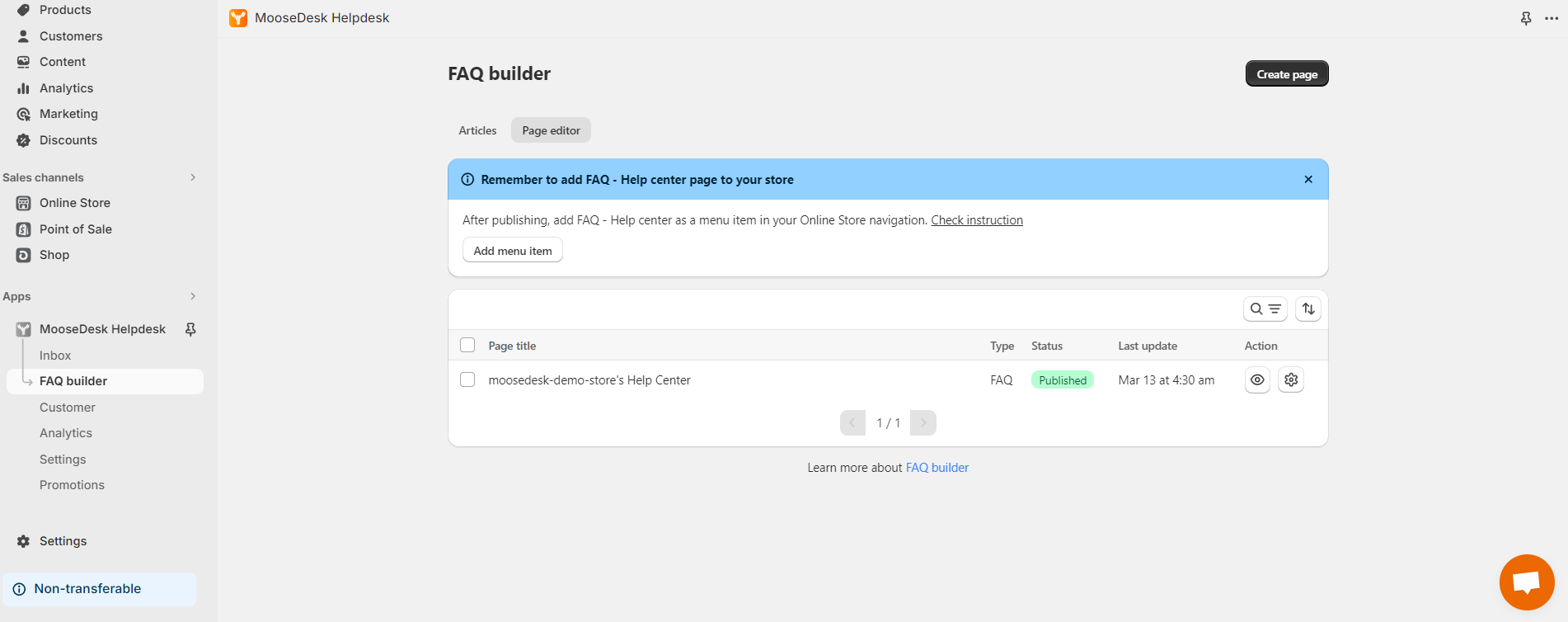
To access Page editor, click on FAQ builder > Page editor. From there, you can start creating and editing your FAQ/Contact us pages together with publish and unpublish them.
Create FAQ and Contact Us pages with MooseDesk
With MooseDesk, you can easily create either an FAQ page or a Contact Us page for your Shopify store. Here are simple steps to do it:
Step 1: Click on FAQ builder > Click “Page editor” tab
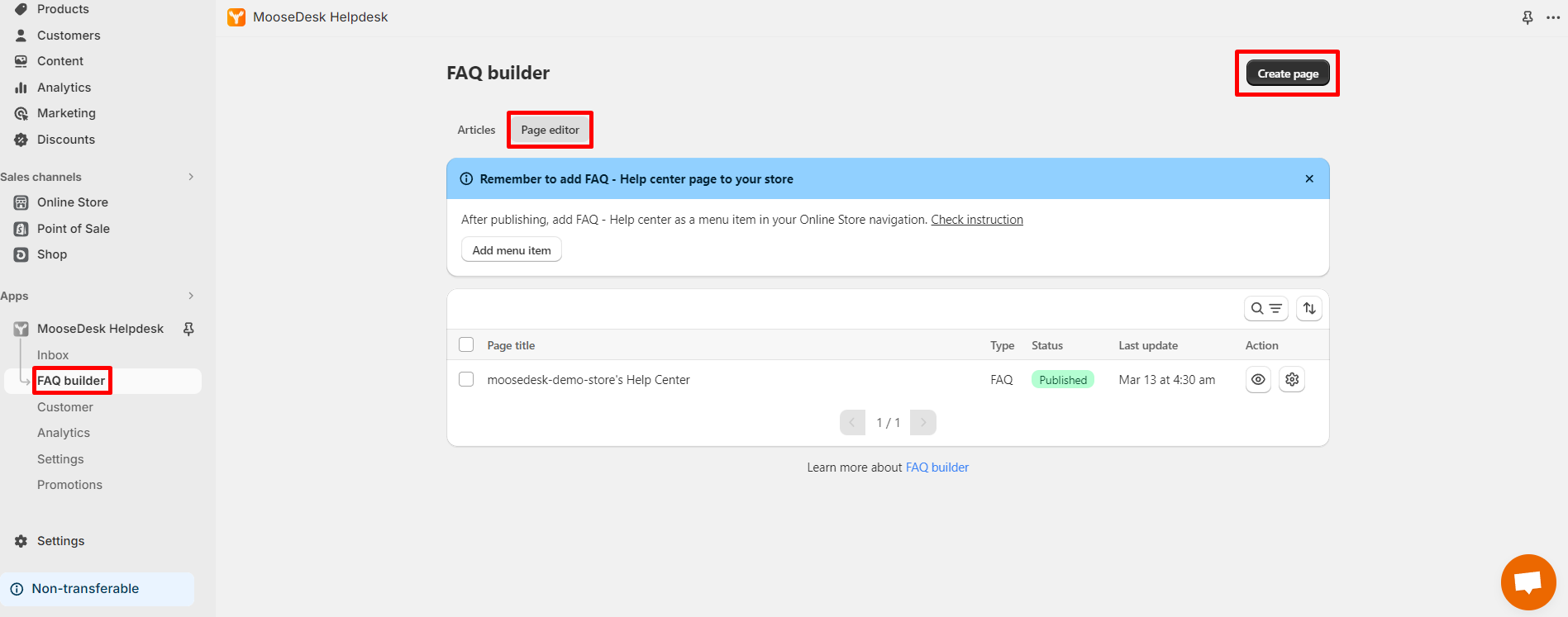
Step 2: Click “Create page”
Step 3: Select an FAQ or Contact Us page that you like in the template list.
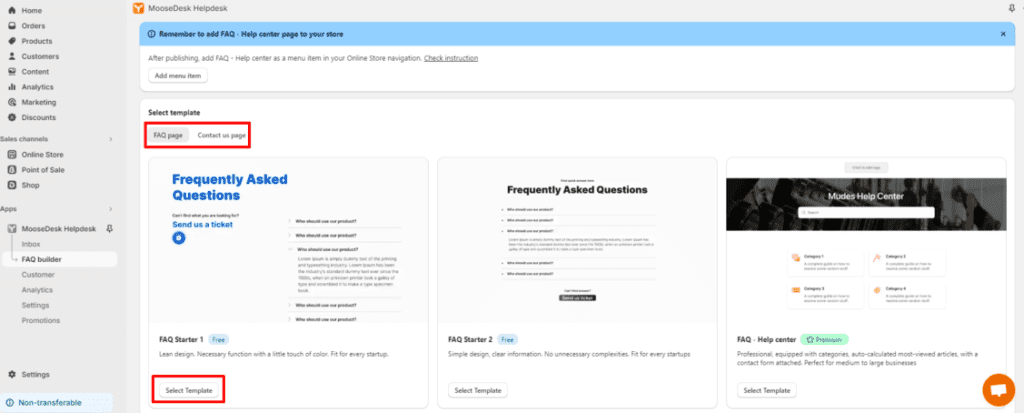
Step 4: Start tailoring your page as you like. For now you can edit:
- Font styling
- Color styling
- Heading, subheadings in the page
- Other customization options available for each template
Note: If you want to edit your FAQ answer (or the “data” of the page): It should be edited in the Article, not in the Page editor. The Page editor is only used for visual styling.
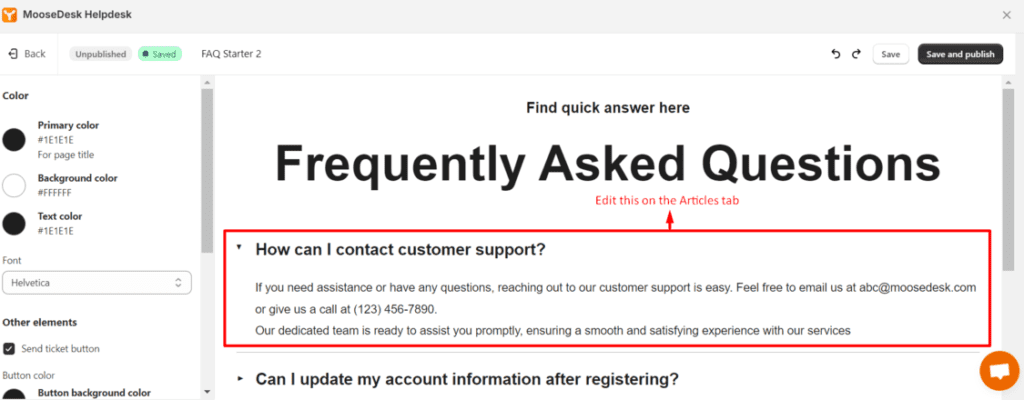
Step 5: Click “Save” (save without publish the page) or “Save and publish” (Save and publish the page)
After saving the page, find it in the Page List table in the Page Editor. You can:
- Preview the page by clicking on the Preview
 icon (only if the page is published)
 - Edit and delete the page by clicking on the Settings
 icon
icon
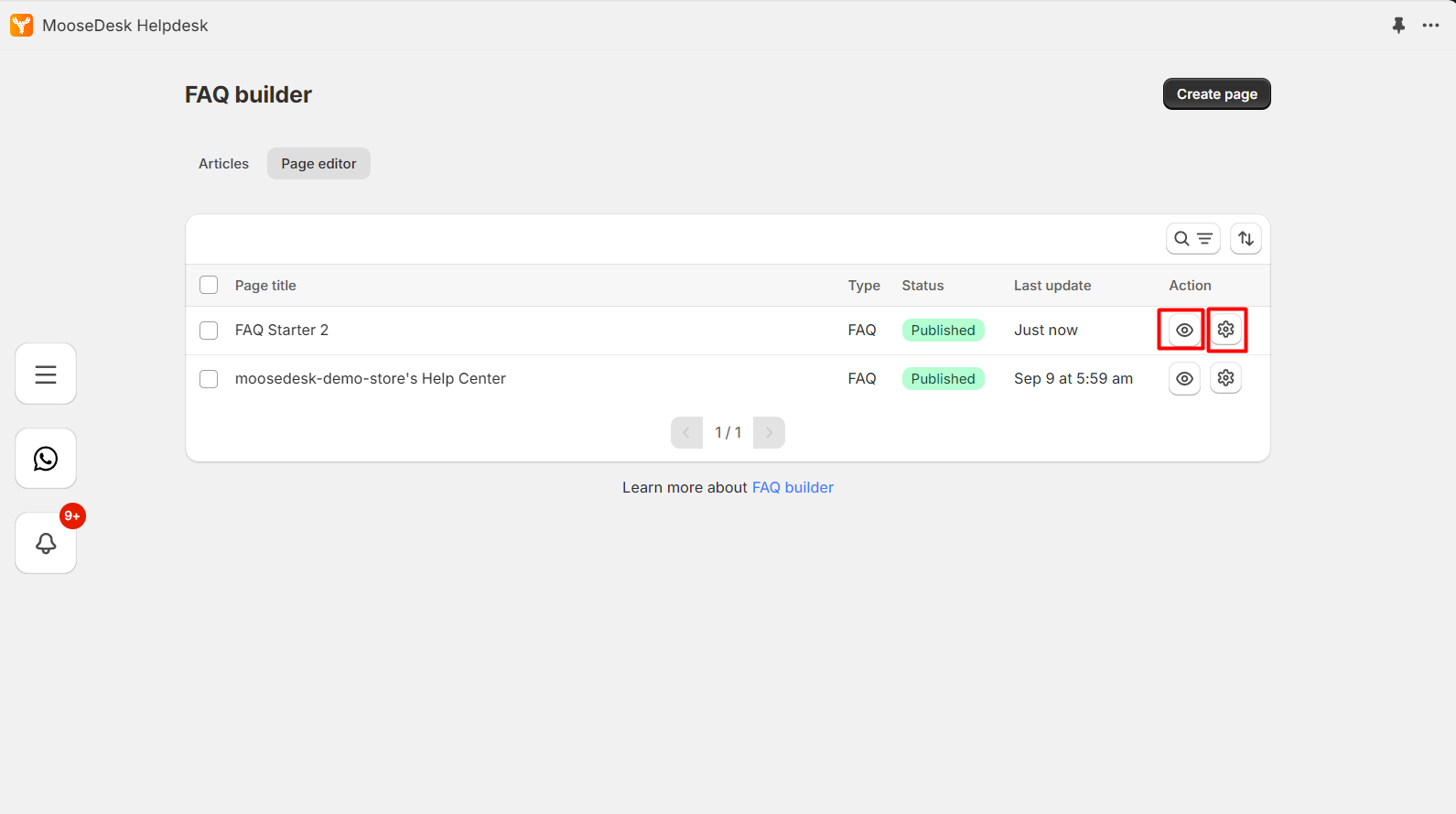
Note that, after publishing your page, you still need to add it into your store menu navigation or a hyperlink and button to make it shown on your store as you wish.
Save, publish/unpublish FAQ and Contact Us pages in MooseDesk
Before getting to learn more about how to publish/unpublish MooseDesk pages, let’s take a look at 4 essential MooseDesk page actions
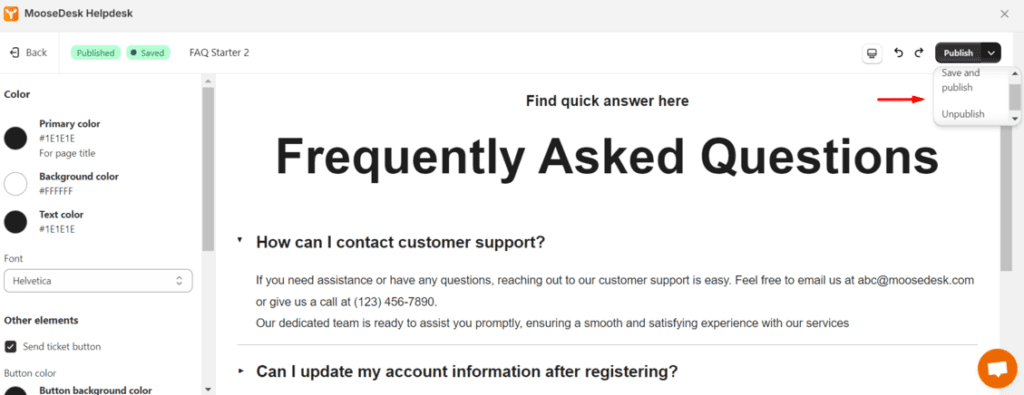
- Save: Save what you have edited, but not yet publish the page. You can only see the page inside the MooseDesk page editor.
- Publish: Publish what you last saved. This generates a live page with a URL can be found in the page setting (). You can lateredit this URL as you like
- Unpublish: Unpublish the page, everything last saved remains. However, once being unpublished, the page can only be seen inside the MooseDesk page editor.
- Save and Publish: Save what you have edited and publish the page as well
You can take these 04 action when editing the page like in the image below:
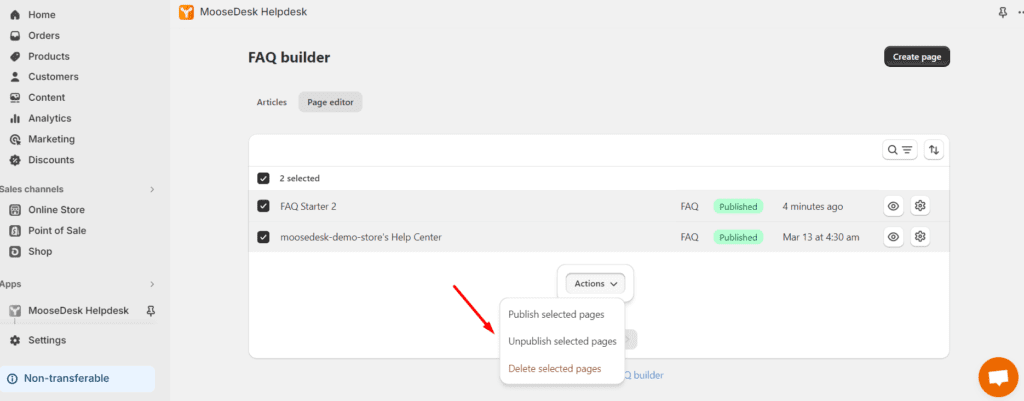
You can also bulk publish/unpublish your pages outside – in the page list table by selecting all the page you want to publish/unpublish > Click “Actions” > Click “ Publish/Unpublish all selected pages”
Delete FAQ and Contact Us pages in MooseDesk
Step 1: Click on FAQ builder > Click “Page editor” tab
Step 2: Find the page you want to delete in the page list table
Step 3: Click the “Settings” icon () on the right hand side of the page list
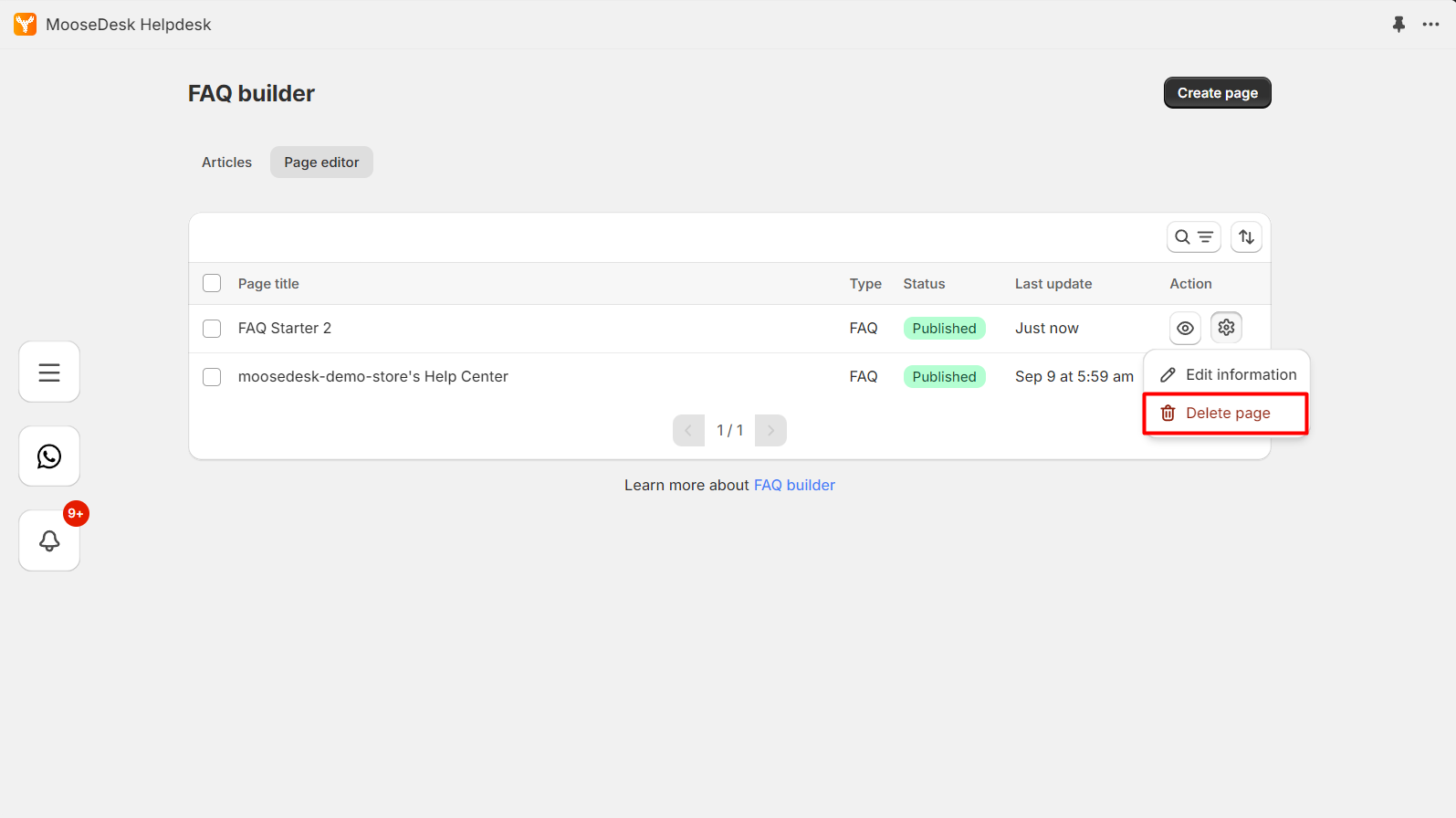
Step 4: Click “Delete pages”
Edit FAQ and Contact Us page information in MooseDesk
In MooseDesk, after successfully creating a page, you can customize the page URL as you like. This can also make your SEO stats get better.
Follow these steps to customize your MooseDesk FAQ page URL:
Step 1: Click on FAQ builder > Click “Page editor” tab
Step 2: Find the page you want to edit information in the page list table
Step 3: Click the “Settings” icon () on the right hand side of the page list
Step 4: Choose “Edit information”
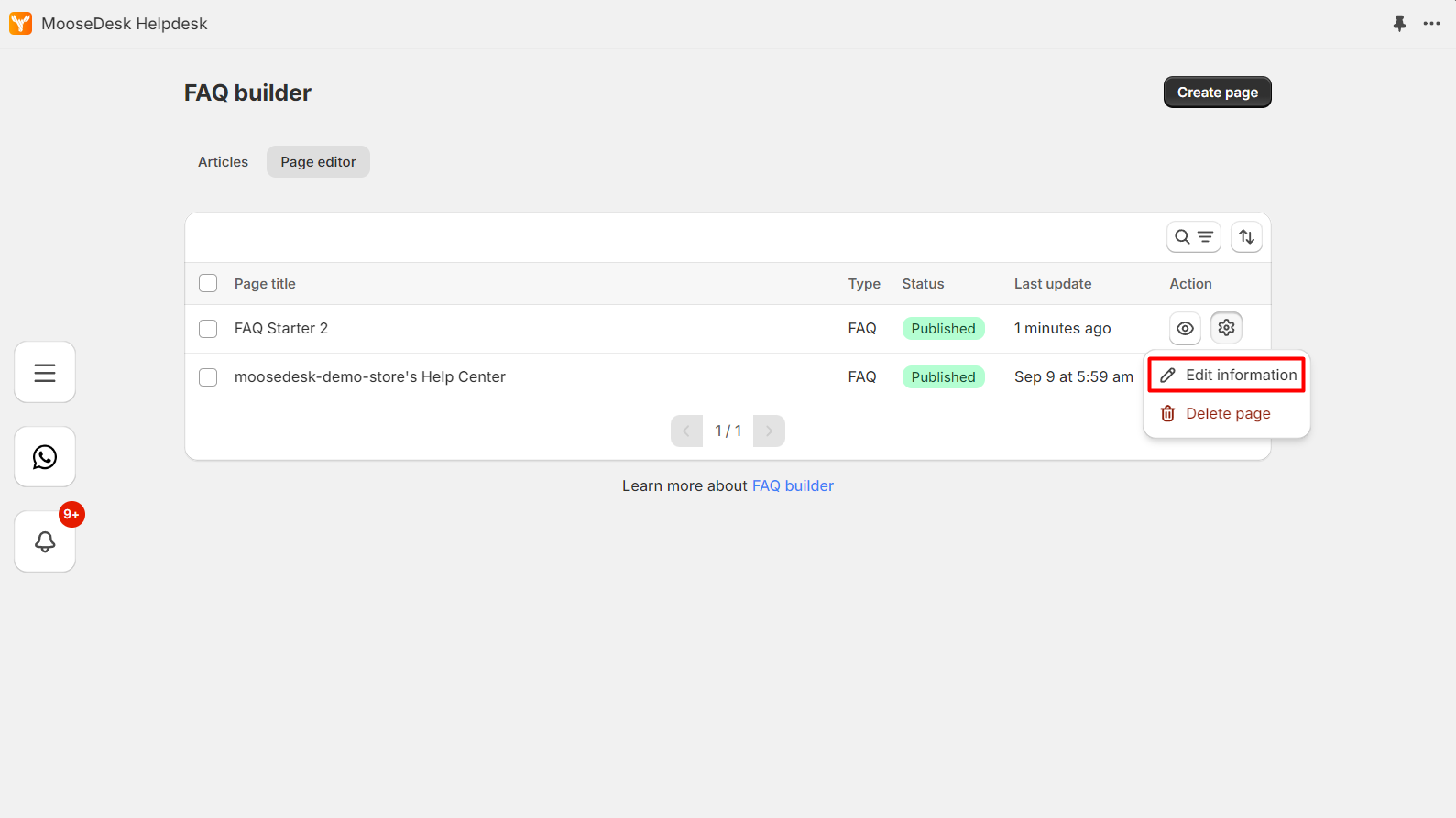
Step 5: From there, you can edit:
- Page URL: The URL of the page itself
- Page title: The title displays in the page list table in MooseDesk
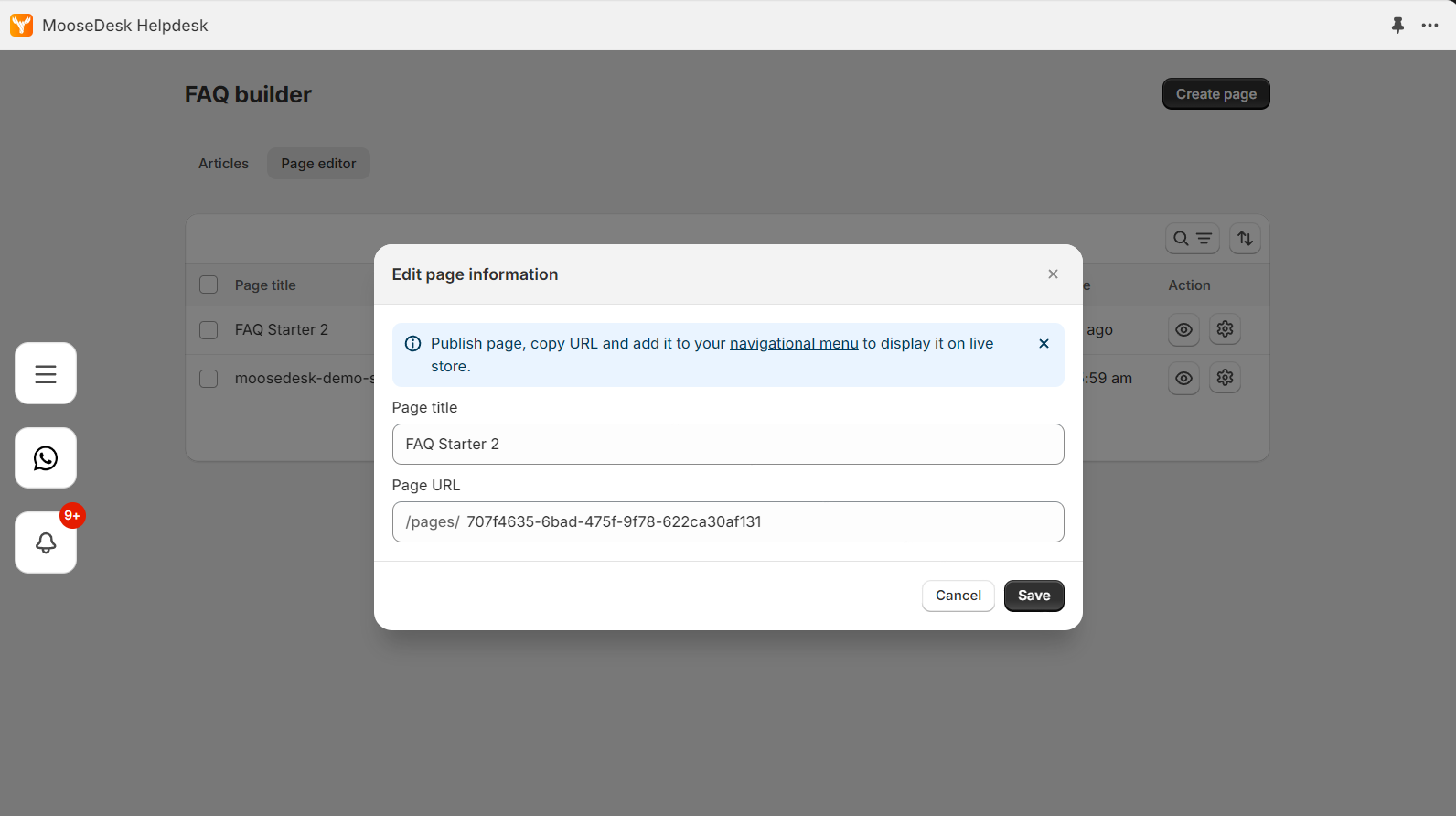
Step 6: Click “Save”
Support Channels
If you ever need assistance, our Help Center is packed with comprehensive guides and tutorials.
At MooseDesk, we’re always here to help. Our dedicated email and live chat teams are available around the clock. Drop us an email at help@moosedesk.com, or click the Live Chat icon located at the bottom left corner of the MooseDesk app, our official website, and even within this Help Center.
Was this article helpful?
How can we help?
Name: *
Email: *
Message: *
How to add Product FAQ to Product Page How to create, edit, publish and unpublish FAQ articles
Powered by BetterDocs
Unlock the potential of great customer service. Together.
Free plan available. No credit card required.
1-min setup. 24/7 Support.
Feel unsure? Book a demo
hello world
Need help?
Email help@moosedesk.com — we usually reply in minutes.