
This guide explains how to connect your social media accounts to MooseDesk, allowing you to receive and respond to customer messages from different channels directly through MooseDesk Inbox.
How to connect to Facebook Messenger #
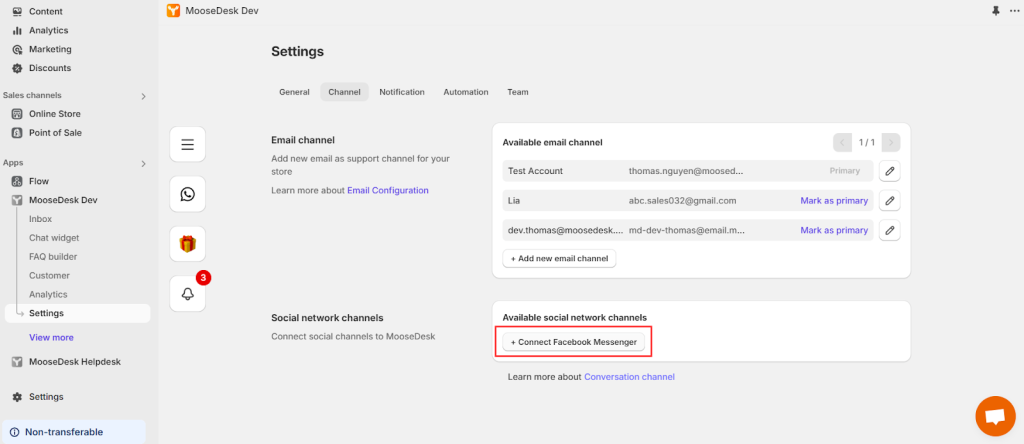
Step 1: Navigate to Settings > Channel > Social network channels

Step 2: Click ‘Connect Facebook Messenger’

Step 3: In the pop-up window, enter your Facebook account credentials and click ‘Continue’

Step 4: Click “Got it” to complete the connection

When customers send messages through Facebook Messenger, new messages will appear in your MooseDesk Inbox with the Facebook Messenger icon 

Now, you can reply directly to them right within MooseDesk Inbox.
How to connect to Instagram #
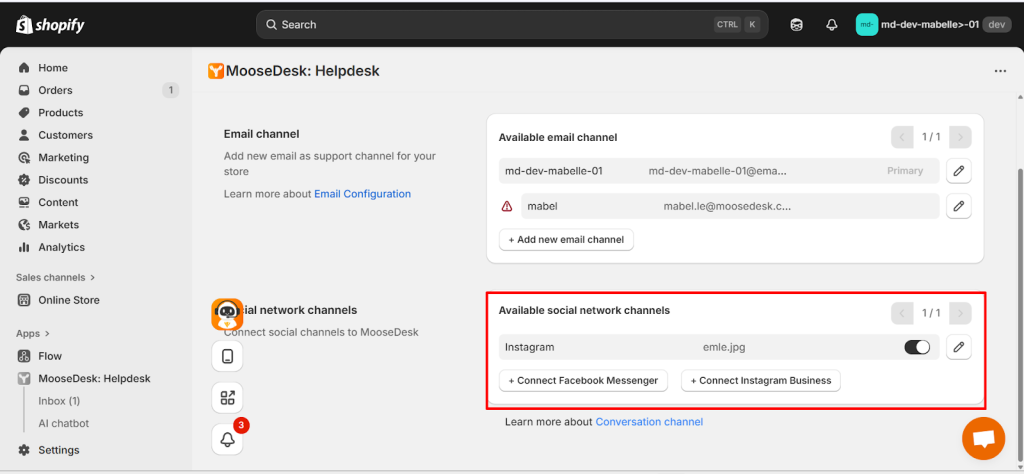
Step 1: Navigate to Settings > Channel > Social network channel
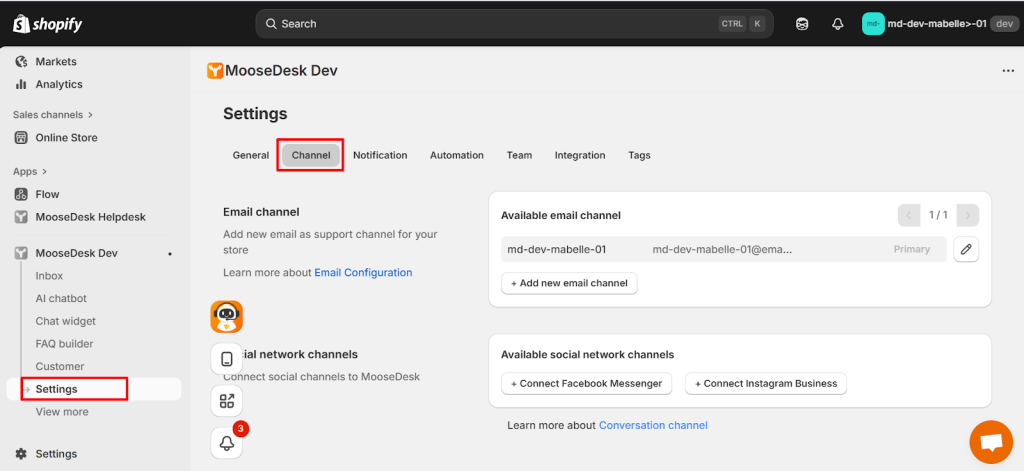
Step 2: Click ‘Connect Instagram Business’
Step 3: In the pop-up window, enter your Instagram account credentials and click ‘Log in’
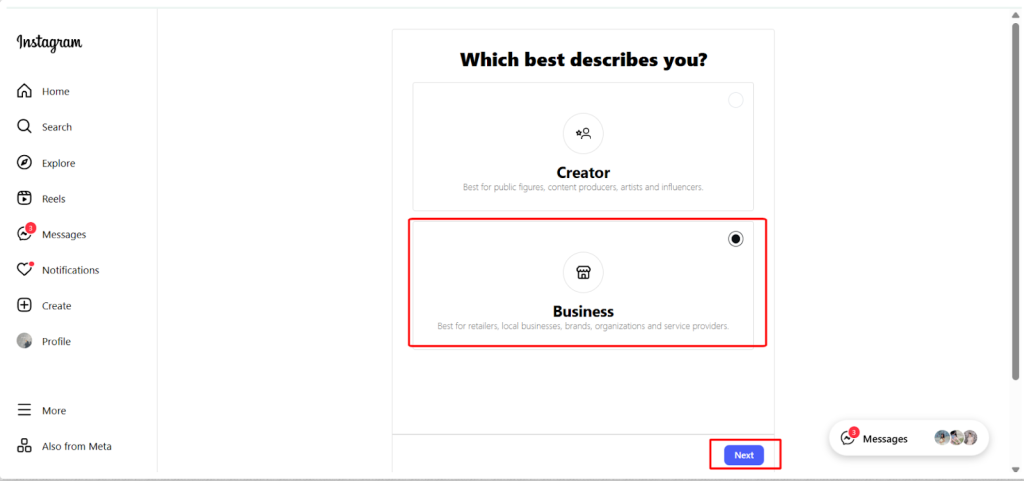
Step 4: Set your account as a Business account and click Next to continue proceed.
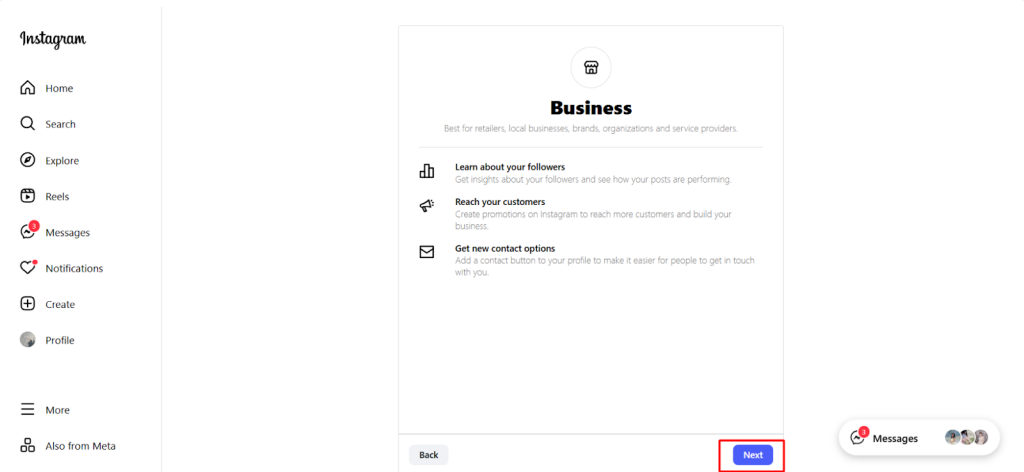
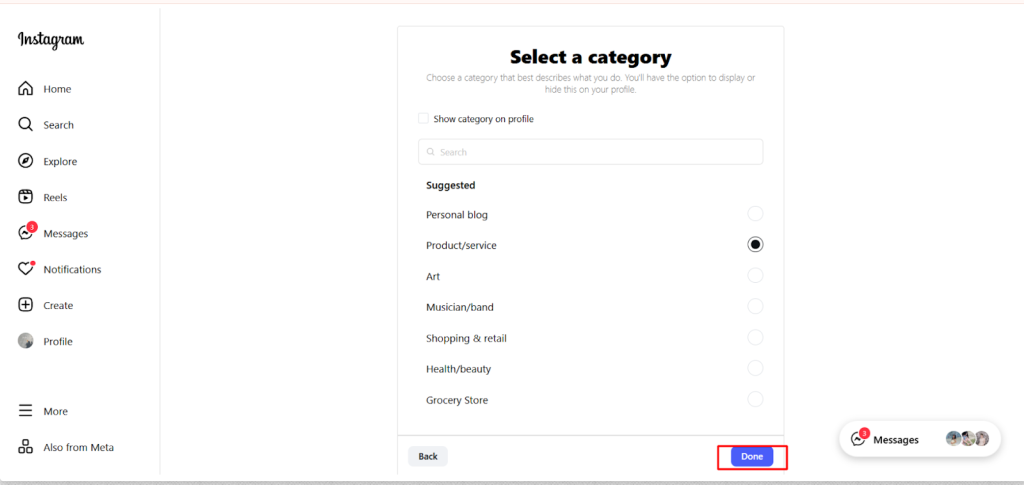
Choosing a category is optional—you can skip this step if you’d like.
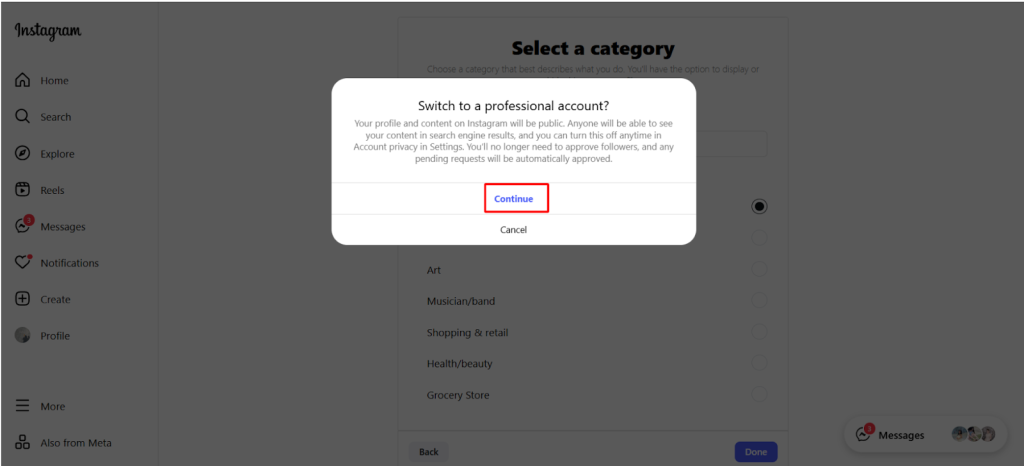
Step 5: Click on Continue to switch your account to professional.
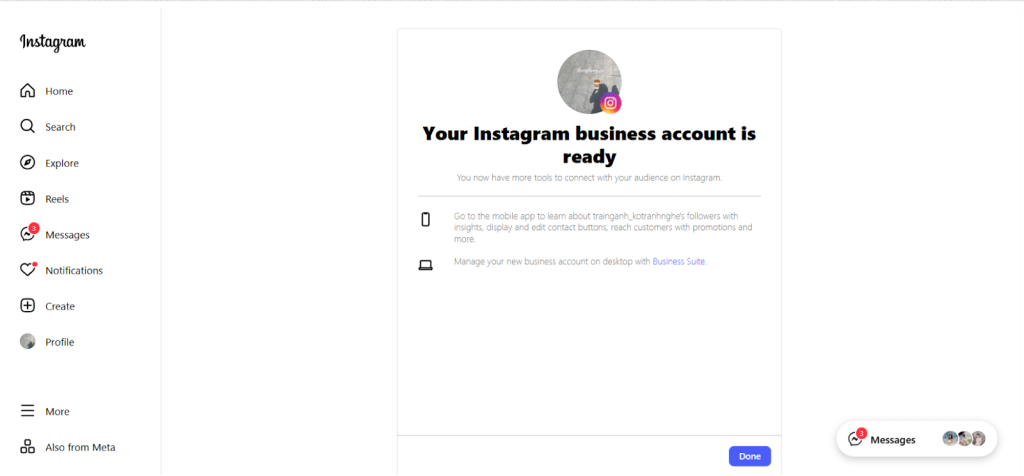
Step 6: Click Done to finish the connection process.
Visual Setup Guide: MooseDesk Video Tutorial
Support channels #
If you ever need assistance, visit our Help Center for comprehensive guides or watch detailed video tutorials on our Youtube channel.
At MooseDesk, we’re always here to help. Our dedicated email and live chat teams are available around the clock. Drop us an email at help@moosedesk.com, or click the Live Chat icon located at the bottom left corner of the MooseDesk app, our official website, and even within this Help Center.