
Add Data Sources
#
This article will guide you through enabling data sources for the AI Chatbot, allowing it to use your selected knowledge to respond to customer conversations effectively.
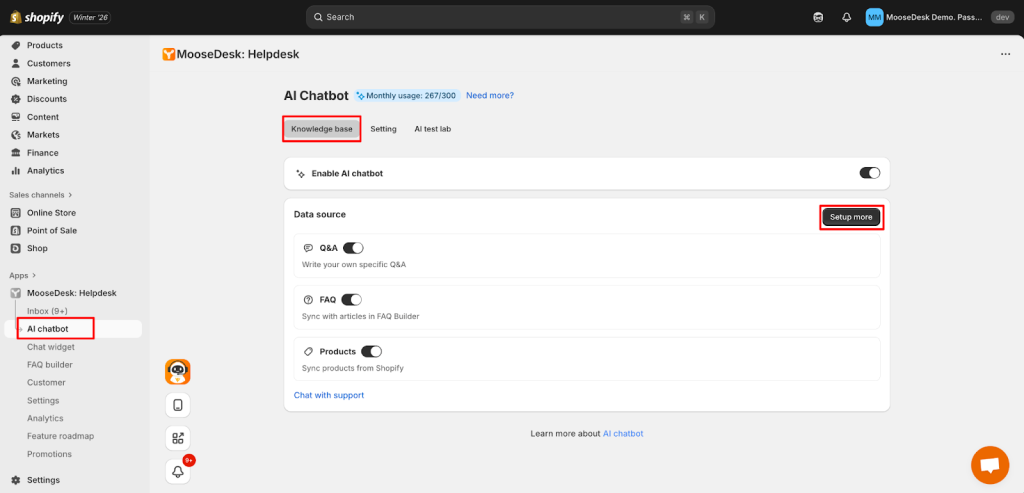
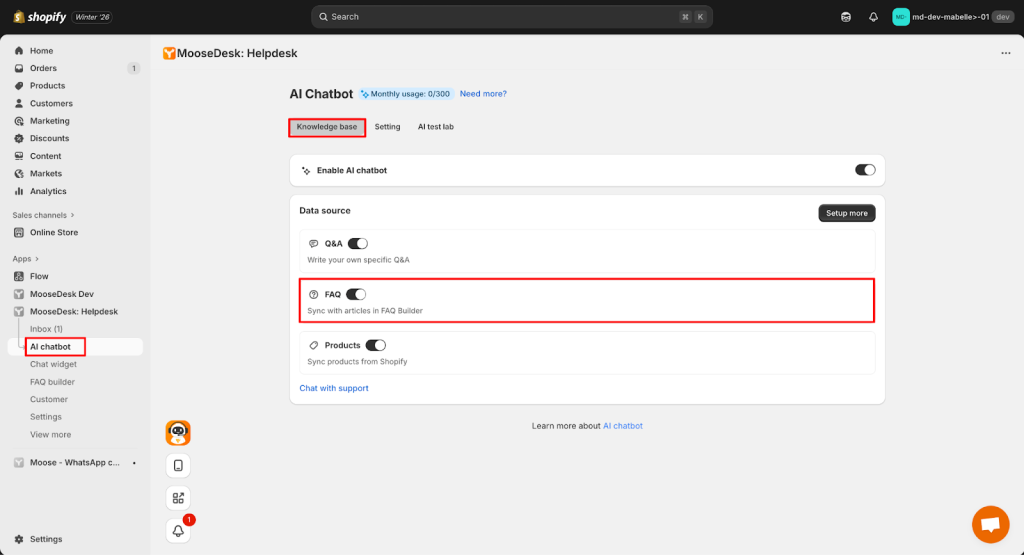
To start using data sources, simply Go to AI Chatbot > Knowledge base > Turn on its toggle to enable it.
Add Q&A #
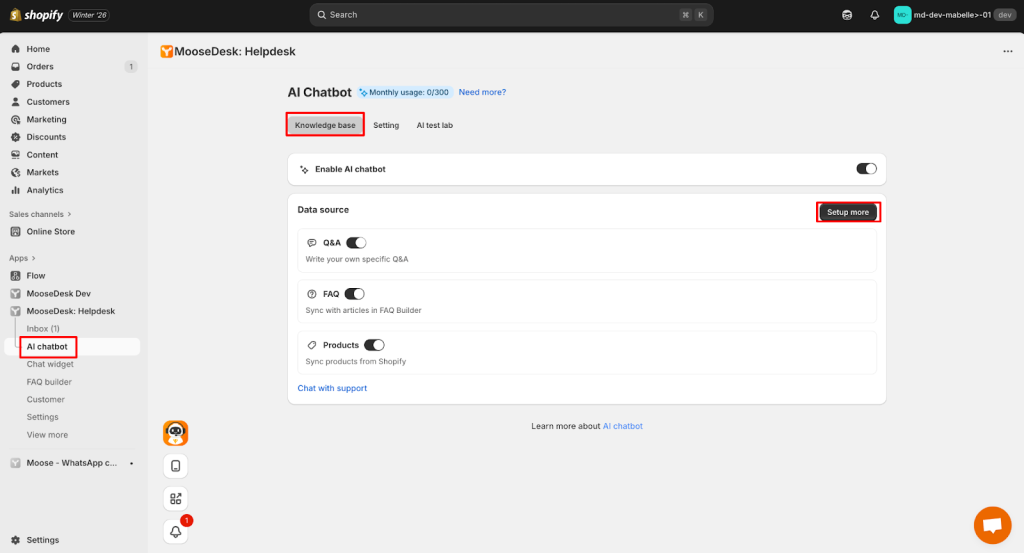
Step 1: Go to the AI chatbot setup page. Click the “Set up more” button to start configuring additional data.
Step 2: Add Q&A
Here navigate to the Data Sources screen. To add a Q&A, click the “Add data source” button at the top-right corner.
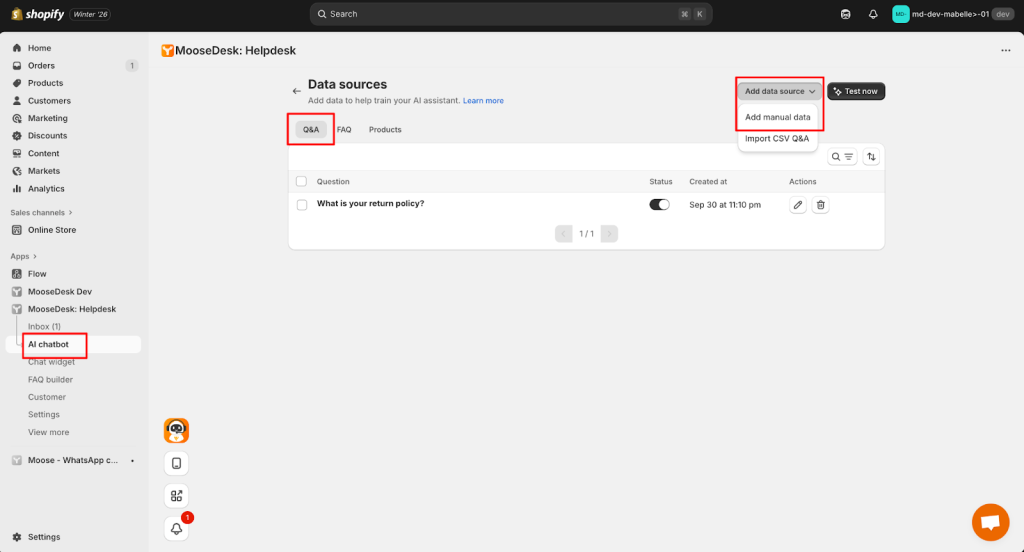
1. Add Manual Data:
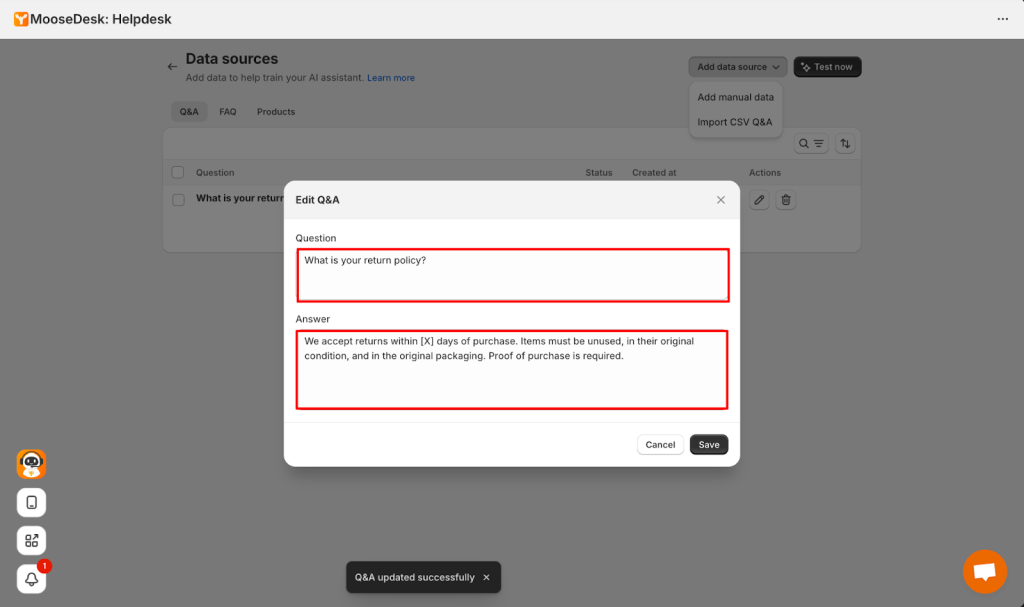
Enter each question and answer directly on the screen. This is usually used when the number of Q&As is small and you want to edit them directly.
For example:
Question: “What is your return policy?”
Answer: “We accept returns within [X] days of purchase. Items must be unused, in their original condition, and in the original packaging. Proof of purchase is required.”
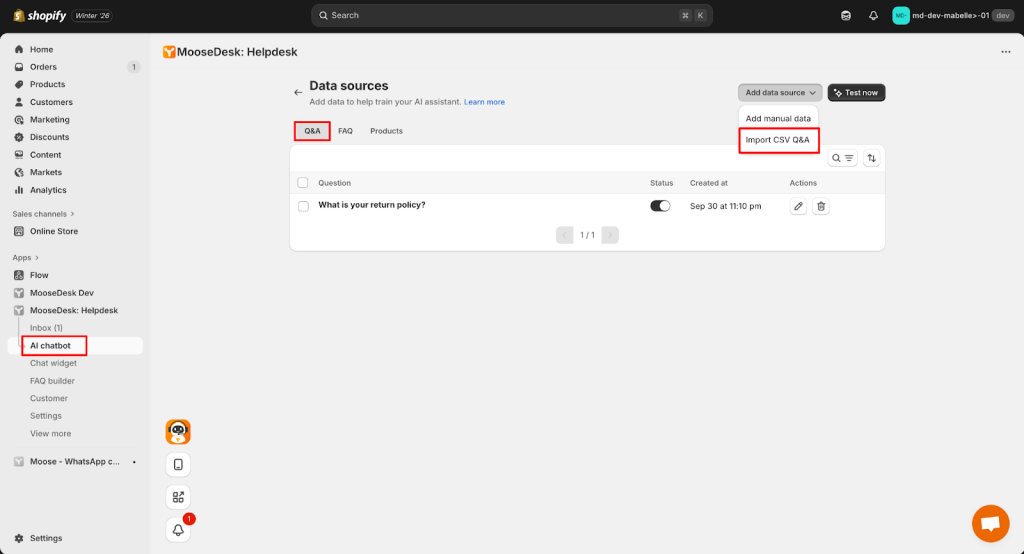
2. Import CSV Q&A
Use this option if you already have a CSV file with your list of Q&As.
To upload it, click the “Import CSV data” in the dropdown
Then click “Download an example CSV”, modify it and or upload your own file. A sample CSV file may contain two columns: Question, Answer.
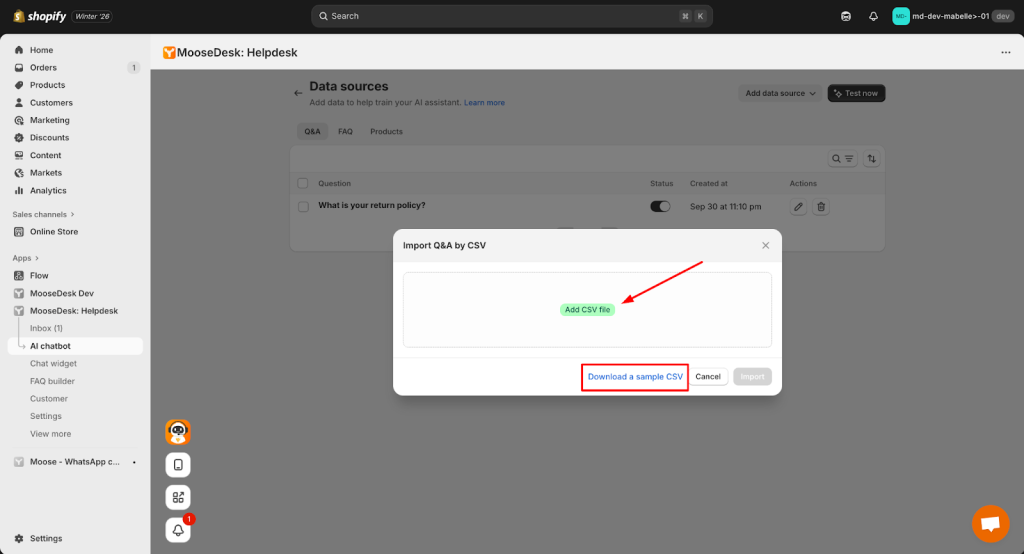
Then the system will automatically add the Q&As from your file into the database.
Sync Products #
Sync product data so the AI Chatbot can learn and provide accurate product information from your Shopify store.
To sync products:
Step 1: Go to AI Chatbot then Select the Product tab
Step 2: Click Add Data Source at the top-right corner. Then choose Sync Product:
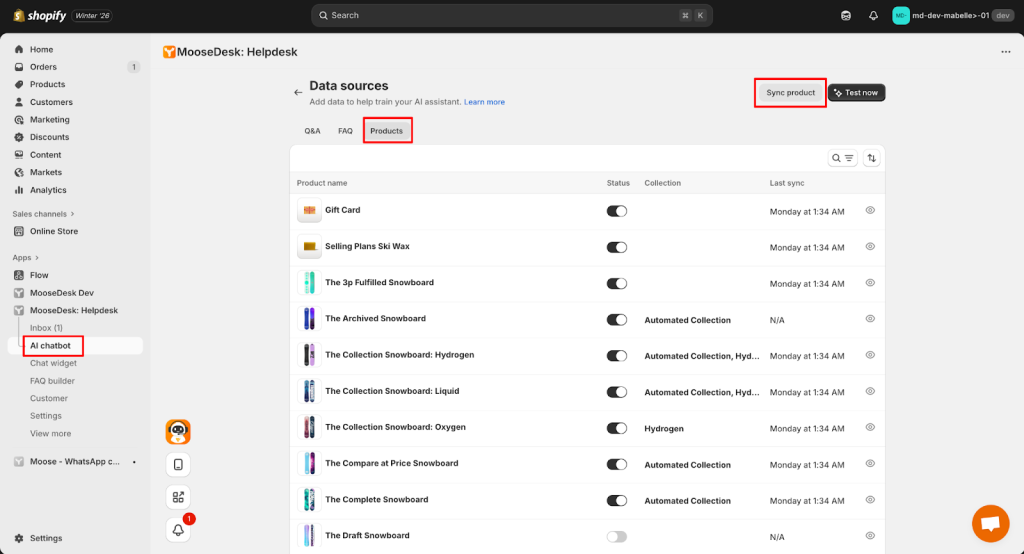
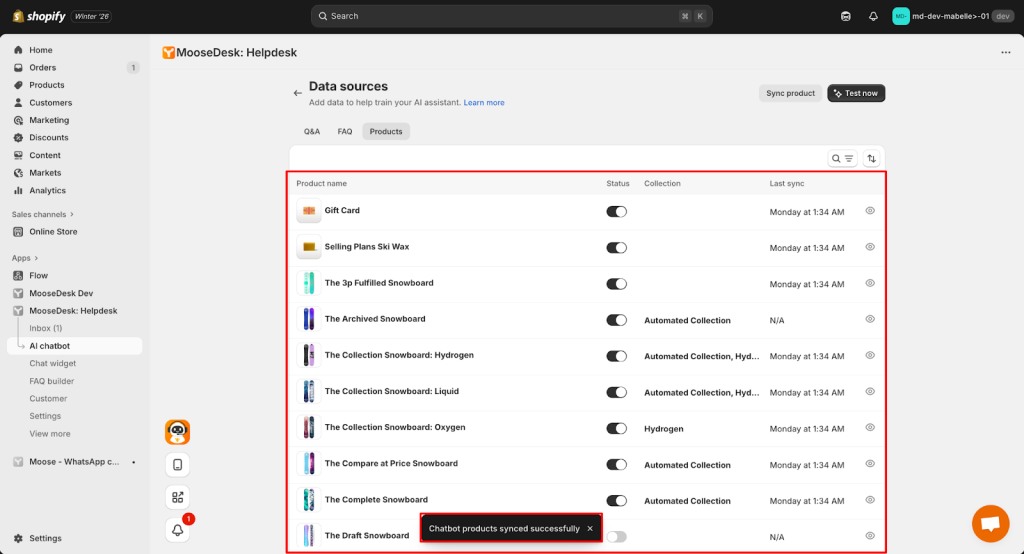
Once synced, your Shopify store products will immediately appear in the list. You can view: Product name, Enable/disable status, Collection, Last sync time.
To view detailed information about a product, click the [eye icon]
Sync FAQs #
To sync FAQ into your AI Chatbot, you just need to turn on the toggle FAQ Builder in the Knowledge base tab.
Your FAQ Builder data will be automatically synced with the AI Chatbot.
👉 Learn more about how to set up FAQ Builder
Support Channels #
If you ever need assistance, our Help Center is packed with comprehensive guides and tutorials.
At MooseDesk, we’re always here to help. Our dedicated email and live chat teams are available around the clock. Drop us an email at help@moosedesk.com, or click the Live Chat icon located at the bottom left corner of the MooseDesk app, our official website, and even within this Help Center.