
This article will guide you through the key elements of MooseDesk Live Chat & Helpdesk
MooseDesk is a customer support application that centralizes all conversations and tickets from various channels into one unified system.
03 main types of ticket channel
MooseDesk receives tickets from three types of channels:
MooseDesk widget
MooseDesk widget integrates with your Shopify store and can receive both live chat messages and tickets.
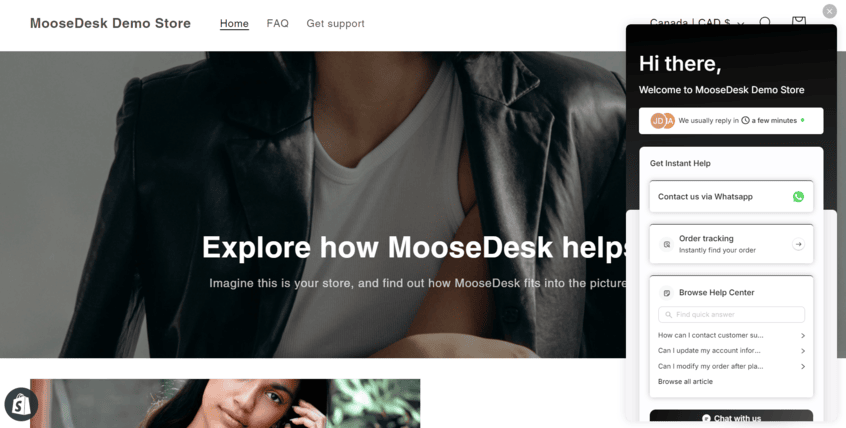
Learn more on how to add MooseDesk widget to your store
Email channels
Email channels that are successfully connected to MooseDesk can forward all incoming messages and tickets..
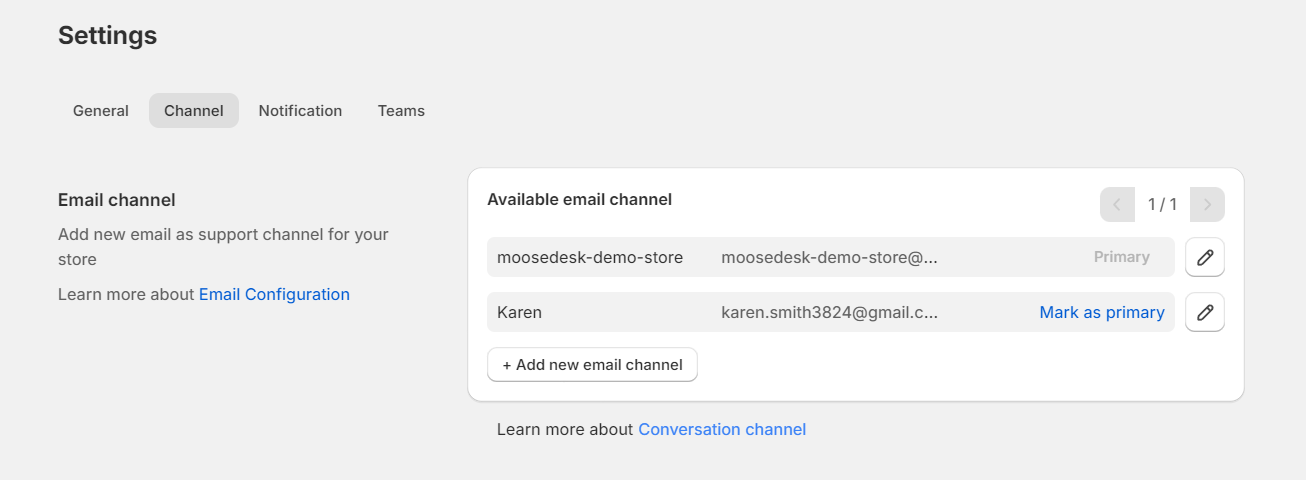
Learn more about how to add new email channels to MooseDesk
Contact forms from MooseDesk FAQ and Contact Us templates
In FAQ and Contact Us designed by MooseDesk, there are some templates containing Contact Form. These forms in specific MooseDesk templates collect all submissions and send them to the MooseDesk system.
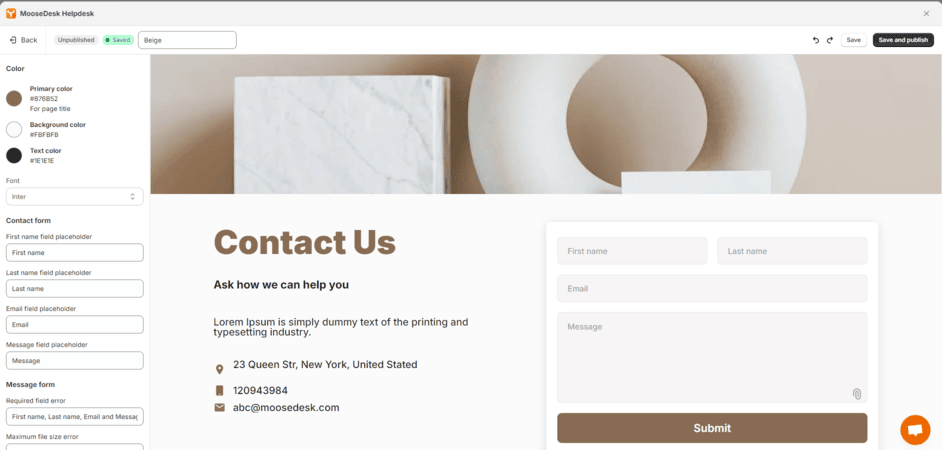
How to check and reply to tickets and conversations with MooseDesk
All tickets and conversations are collected and listed in the Inbox.
The channels are displayed as Channel Tabs. You can switch between Channel Tabs to check tickets from a particular channel, or use the ‘All’ tab to view all tickets and conversations regardless of their source.
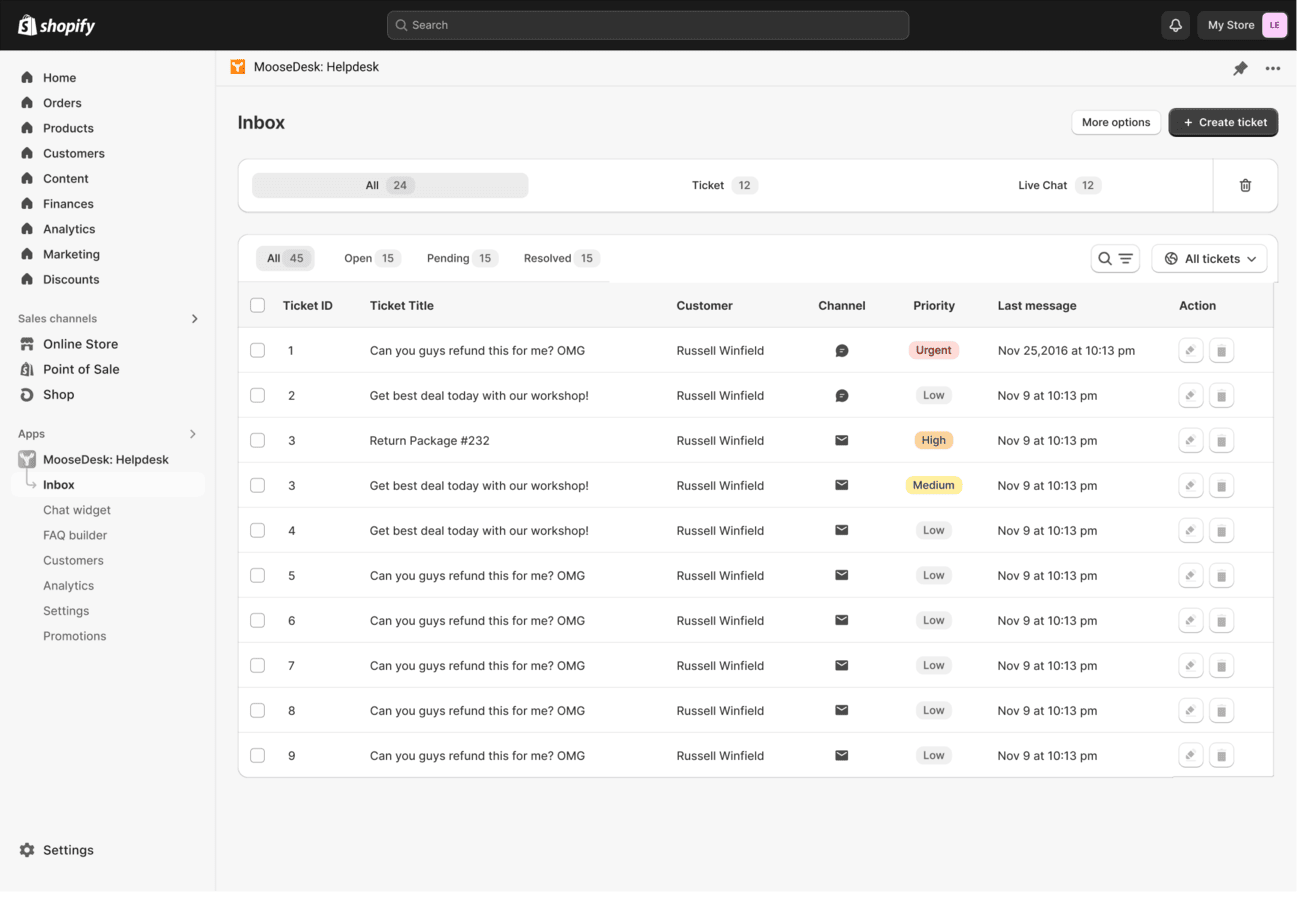
Learn more about how to use MooseDesk inbox to receive and reply to your tickets and chat conversations
MooseDesk embed, standalone, and mobile versions
MooseDesk offers three app versions: Embedded, Standalone, and Mobile.
MooseDesk embed
The embed version can be used directly in the Shopify Admin. Since it’s within the Shopify Admin, only store owners with access to the Shopify Admin can use this version.
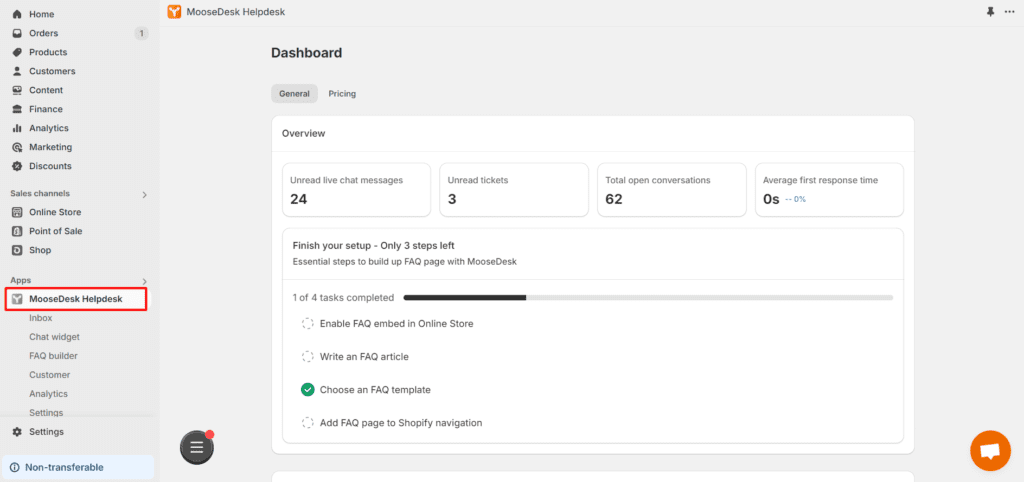
However, store owners can send Shopify staff invitations with access to MooseDesk, allowing their staff to use MooseDesk in the Shopify Admin.
Learn more about how to invite members to use MooseDesk
MooseDesk mobile app
MooseDesk mobile app makes it easy to manage your conversations from anywhere. With a simple design, you can quickly view and respond to tickets, chat with customers, and get important updates right on your phone.
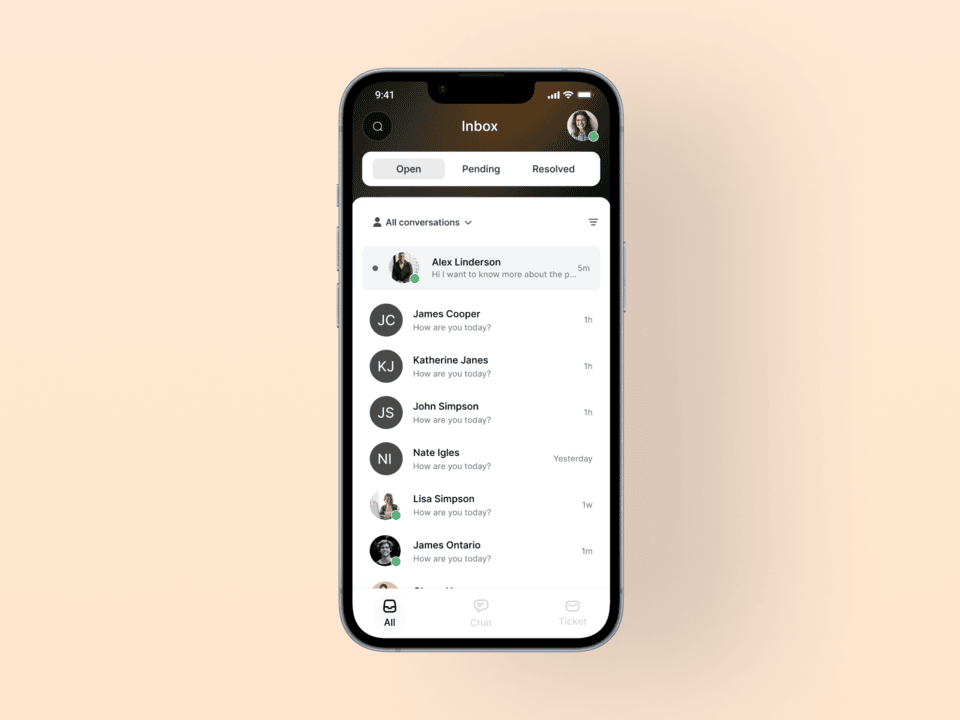
Learn more on how to use MooseDesk mobile app.
MooseDesk standalone
The standalone version can be used outside the Shopify Admin, with open access for all team members to use via their own accounts in desktops and mobile browsers.
There are 02 ways to access MooseDesk standalone:
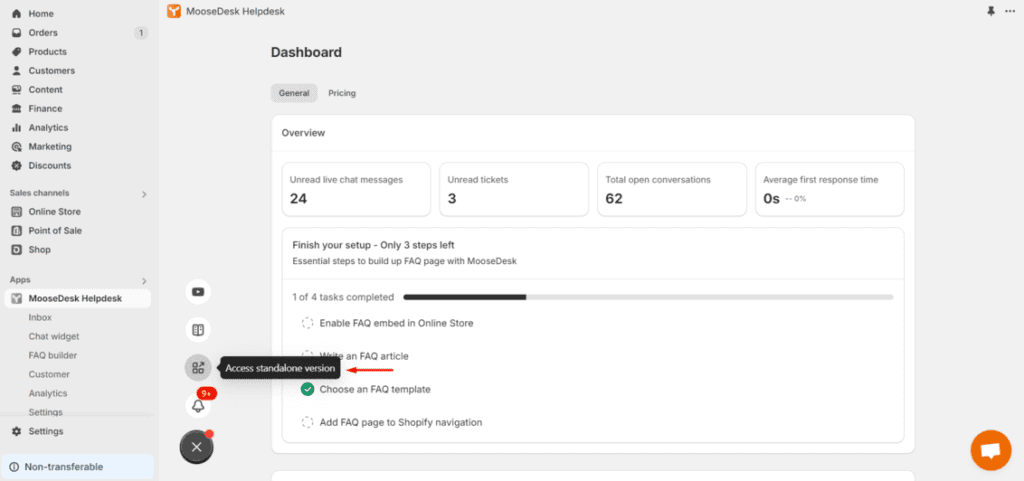
- Via Shopify Admin: Click on the Menu button
-> click on ‘Access standalone’. Anyone accessing the standalone version through Shopify Admin won’t need to enter their account email and password.
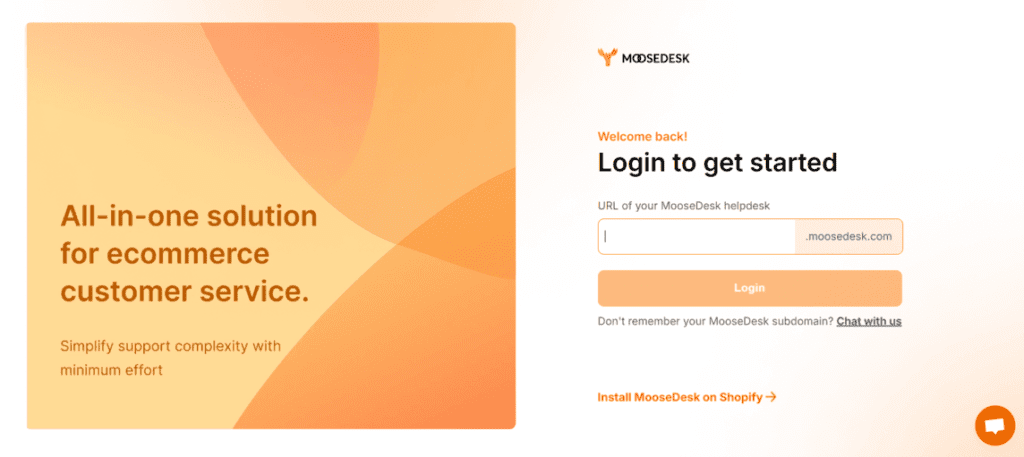
- Via MooseDesk login page: Access the login page -> enter your MooseDesk account email and password -> Click ‘Login’
Visual Setup Guide: MooseDesk Video Tutorial
Get to know MooseDesk ticket channels - YouTube
Tap to unmute
Get to know MooseDesk ticket channels MooseDesk - Shopify Helpdesk
MooseDesk - Shopify Helpdesk43 subscribers
Support Channels
If you ever need assistance, visit our Help Center for comprehensive guides or watch detailed video tutorials on our Youtube channel.
At MooseDesk, we’re always here to help. Our dedicated email and live chat teams are available around the clock. Drop us an email at help@moosedesk.com, or click the Live Chat icon located at the bottom left corner of the MooseDesk app, our official website, and even within this Help Center.
Was this article helpful?
How can we help?
Name: *
Email: *
Message: *
How to configure widget position & availability How to use MooseDesk mobile app
Powered by BetterDocs
Unlock the potential of great customer service. Together.
Free plan available. No credit card required.
1-min setup. 24/7 Support.
Feel unsure? Book a demo
hello world
Need help?
Email help@moosedesk.com — we usually reply in minutes.