
How to add live chat and AI chatbot to your Shopify store (Step-by-step)
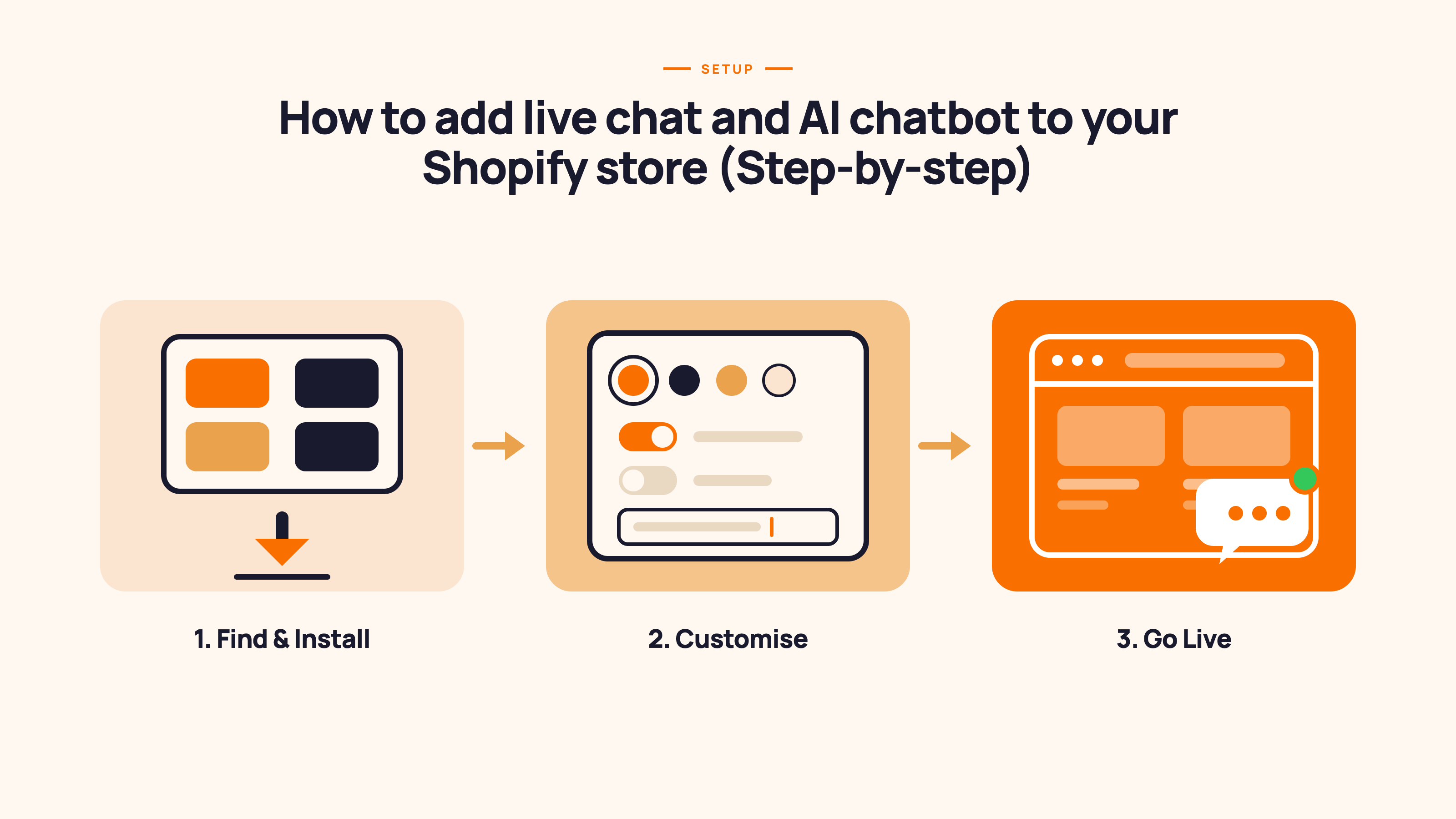
Table of contents
Adding live chat and an AI chatbot to your Shopify store takes under 30 minutes and requires zero coding. You install an app from the Shopify App Store, connect it to your store data, configure the chat widget, and go live. That's the whole process.
This guide covers each step in detail, including what to look for before you install, how to train your chatbot after launch, and a pre-launch checklist to run through before you switch it on.
Not sure yet whether you need live chat, an AI chatbot, or both? Start here first: How AI Chatbots Work for Ecommerce Customer Support.
Live chat vs AI chatbot vs both: What does your Shopify store actually need?
Many Shopify merchants conflate live chat and AI chatbot. They're different tools with different roles, and many apps now combine both in one widget. Worth clarifying before you install anything.
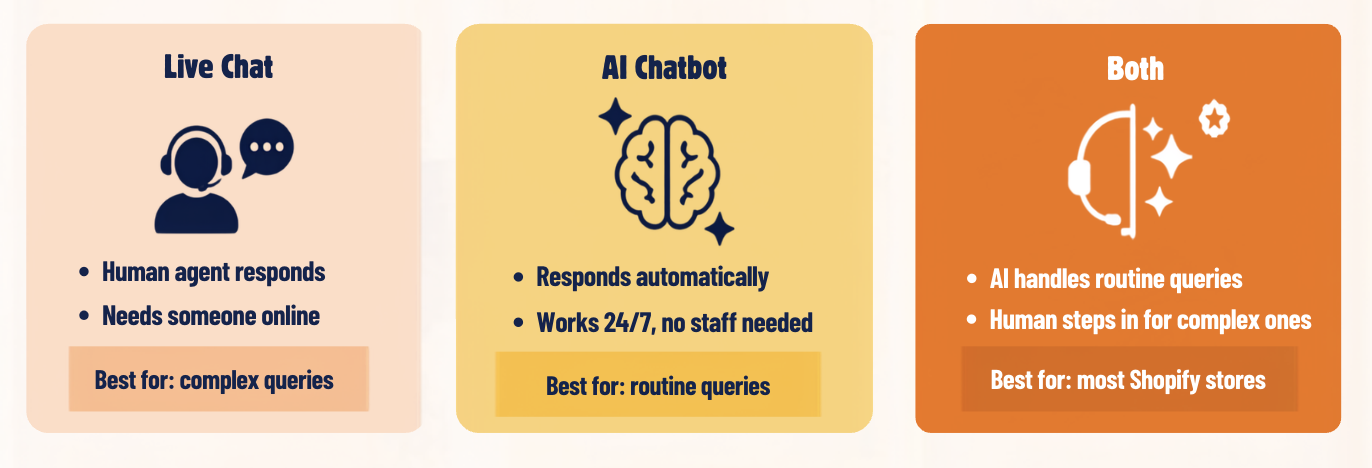
Live chat is a real-time messaging channel where a human agent responds to customers through a chat widget on your store. It's best for complex conversations, high-value customers, and situations that require judgment or empathy. The catch: someone needs to be online and actively responding.
AI chatbot is software that responds automatically using trained data. It handles FAQs, order tracking, product questions, sizing help, and cart recovery around the clock without a human in the loop. It doesn't need anyone to be online.
Both together is the recommended setup for most Shopify stores. The AI chatbot handles routine queries automatically, and a human agent takes over for complex ones. This is the most practical approach at any store size: you get full automation plus the ability to step in when it matters.
For most Shopify stores, the best approach is a Shopify-native app that includes both: an AI chatbot for automation and live chat for human handoff, all running from one dashboard.
For the full breakdown on chatbot types, see: What Is an AI Chatbot? And if you want the revenue side of the story, see How AI Chatbots Drive Sales for Shopify Stores.
What to look for in a Shopify live chat and chatbot app
There are dozens of options on the Shopify App Store. Most fall short on at least one of these five criteria. Run through them before you commit to anything.
- Native Shopify integration. The app should install directly from the Shopify App Store and connect to your orders, products, and customer data without a manual sync. If it requires a third-party webhook or custom API setup, it's not truly Shopify-native.
- AI chatbot and live chat in one tool. Managing two separate apps, two dashboards, and two billing accounts to cover both functions creates unnecessary overhead. Look for a single app that handles both.
- No-code setup. Everything should be configurable through a visual dashboard. You shouldn't need to edit your theme files or touch any code for a standard installation. (Some advanced positioning tweaks are optional and do require CSS, but the core setup shouldn't.)
- Real-time Shopify data access. The chatbot should be able to answer "where is my order?" by pulling live tracking data from your Shopify order management, not just pointing the customer to a tracking link. This requires the app to have proper order data permissions.
- Clean human handoff. When a customer asks something the chatbot can't handle, it should transfer the conversation to a live agent with the full conversation history intact. The customer should never have to repeat themselves.
Apps that meet all five criteria are a minority on the Shopify App Store. MooseDesk is built to this spec: AI chatbot, live chat, and helpdesk in one Shopify-native app. But whatever tool you choose, these five criteria are the right filter. These criteria weren't written as marketing copy. They came from a decade of building Shopify solutions and watching what went wrong when tools missed them. MooseDesk launched in 2023 with all five built into the core product, partly because we'd seen the consequences of each missing piece in earlier Shopify chat implementations. The one that causes the most visible damage when absent is real-time order data access. A chatbot without it can't answer WISMO queries accurately, which means the highest-volume ticket type in most stores, order tracking, stays manual. That single gap often accounts for 20-40% of a merchant's weekly support time.
How to add live chat and AI chatbot to Shopify (Step by step)
The process to add live chat to Shopify is the same across most Shopify-native apps. The following steps use generic Shopify admin instructions so they apply regardless of which app you choose.
- Go to the Shopify App Store. In your Shopify admin, click Apps in the left sidebar, then click Shopify App Store. Search for "live chat" or "AI chatbot". Filter by rating (4 stars and above) and look for apps that specifically mention Shopify order integration in their description. Read recent reviews to check whether merchants report accurate order tracking and smooth setup.
- Install the app. Click the app listing and review the permissions it requests. A legitimate Shopify chatbot app needs access to orders and customers to function fully. This is expected, not a concern. Click Add app. Shopify will prompt you to confirm the permissions. The app installs automatically and appears in your Apps list.
- Connect your store data. In the app dashboard, link your product catalog, order management system, and any existing FAQ content. For Shopify-native apps, this typically happens automatically through the Shopify API. For third-party apps, you may need to configure a manual sync. This step determines how accurately your chatbot answers store-specific questions from day one.
- Customise the chat widget. Set the widget colour to match your store's branding, choose the position (bottom-right is the standard for most stores), write your welcome message, and add your logo or agent photo. According to research by EasyApps on Shopify chat implementations, personalised widgets with agent names and photos get 30% higher engagement than anonymous ones. Worth spending 10 minutes here.
- Write your initial FAQ responses. Add answers to your 10 to 15 most common customer questions: shipping times, return policy, discount code instructions, product-specific questions, and order tracking. This is the minimum training your chatbot needs before going live. The more specific and accurate these answers are, the better the chatbot performs from day one.
- Configure human handoff rules. Set the conditions that trigger escalation to a live agent: specific keywords such as "complaint", "broken", or "refund not received"; explicit requests for a human agent; or questions that fall outside the chatbot's knowledge base. Set your business hours so the chatbot handles all queries automatically when no agent is available, with a clear message about when to expect a human response.
- Test before going live. Open your store in an incognito browser window and run through at least five test conversations: a product question, an order tracking query, a return request, a discount code question, and an intentionally off-topic question to verify escalation fires correctly. Fix any gaps before the chatbot is visible to real customers. Shopify tip: duplicate your theme before making any code changes so you can roll back instantly if something looks wrong.
- Publish. Switch the chatbot from draft to live in your app dashboard. Verify the widget appears correctly on desktop and mobile. On mobile especially, check that the chat bubble doesn't cover your Add to Cart button. This is the most common visual conflict and it kills conversions faster than having no chat at all.

After install: How to train your chatbot for better results
Installing the app gets your chatbot live. Training it gets it accurate. These are two separate activities, and most merchants underinvest in the second one.
Weeks 1 and 2 after launch: check your chat logs daily. Look for three things: questions the chatbot couldn't answer (these get escalated or go unanswered), incorrect responses (wrong shipping time, outdated return policy), and escalation triggers that fired when they shouldn't have. Every gap in the logs is a training opportunity.
Add questions using the exact customer phrasing. When you train on a missed question, use the actual wording from the chat log, not a rewritten version. Your chatbot needs to recognise how your customers actually type: "do u ship to canada", "whats the return policy", "is this in stock in blue". Formal, grammatically correct phrasing misses a significant portion of real queries.
Train on your top 20 to 30 products specifically. For stores with large catalogs, add common questions for each key product: sizing, variants, care instructions, typical comparison questions. A customer asking "is this the same as the old version?" on a product page needs a specific answer, not a generic FAQ redirect.
Update before every major seasonal period. Before BFCM, holiday season, or any significant product launch, update your chatbot's knowledge base. Outdated information is the most common source of chatbot errors for Shopify stores, and the mistakes compound during high-traffic periods when you have the least time to fix them.
For a complete training guide with templates, see: How to Train Your AI Chatbot to Answer Store-Specific Questions.
Pre-launch checklist
Run through this before you switch the chatbot to live. Every item matters.
Frequently Asked Questions about adding live chat to Shopify
Do I need coding skills to add live chat to Shopify?
No. All modern Shopify live chat and AI chatbot apps install directly from the Shopify App Store with no code required. The chat widget is added to your store automatically, and all customisation happens through the app's visual dashboard. The only exception is optional advanced widget positioning, where some apps provide CSS variables for fine-tuning. That's entirely optional and not required for a standard setup.
How long does it take to add a chatbot to Shopify?
The initial installation takes under 30 minutes. This covers installing the app, connecting your store data, customising the widget, and writing your first FAQ responses. Reaching a fully trained, accurate chatbot that handles the majority of your incoming queries typically takes 2 to 3 weeks of daily monitoring and refinement after launch.
What is the difference between Shopify Inbox and a third-party AI chatbot app?
Shopify Inbox is Shopify's built-in free messaging tool. It supports live chat and basic automated replies, but it does not include AI-powered natural language processing, trained chatbot responses, or advanced features like cart recovery, proactive messaging, or product recommendations. Third-party AI chatbot apps built for ecommerce offer significantly more automation capability and can handle a much broader range of customer conversations without human involvement.
Can the chatbot answer questions when I am offline?
Yes. This is one of the core advantages of an AI chatbot over basic live chat. The AI handles queries automatically regardless of your business hours: product questions, order tracking, return initiation, and FAQs all get answered instantly. You configure human handoff rules to define which queries should be saved for when an agent is available, and customers receive a clear message about expected response times rather than silence.
The setup itself is the easy part. Most merchants have their chatbot live within an afternoon. The returns compound over the following weeks as the bot learns from real conversations and your training improves its accuracy.
For the complete picture on what AI chatbots can do for your Shopify store, from driving sales to reducing support volume, see our complete guide to AI chatbots for ecommerce.
MooseDesk installs directly from the Shopify App Store in one click. AI chatbot, live chat, and helpdesk in one app, connected to your products, orders, and customers from day one.
Try MooseDesk
AI chatbot, live chat, and helpdesk in one Shopify-native app.
Free plan available. 1-min setup. 24/7 Support.