
This article will help you set up holidays and enable auto-reply messages
Why do you need to set up holidays?
The holiday settings in MooseDesk let you set up holidays and enable auto-reply messages to notify customers about your holiday schedule. You can also provide instructions on how their inquiries will be handled during your absence, ensuring clear communication and customer satisfaction.
How to set up holidays?
Step 1: Navigate to Settings > General
Step 2: Go to Holidays section, then click on Add holiday

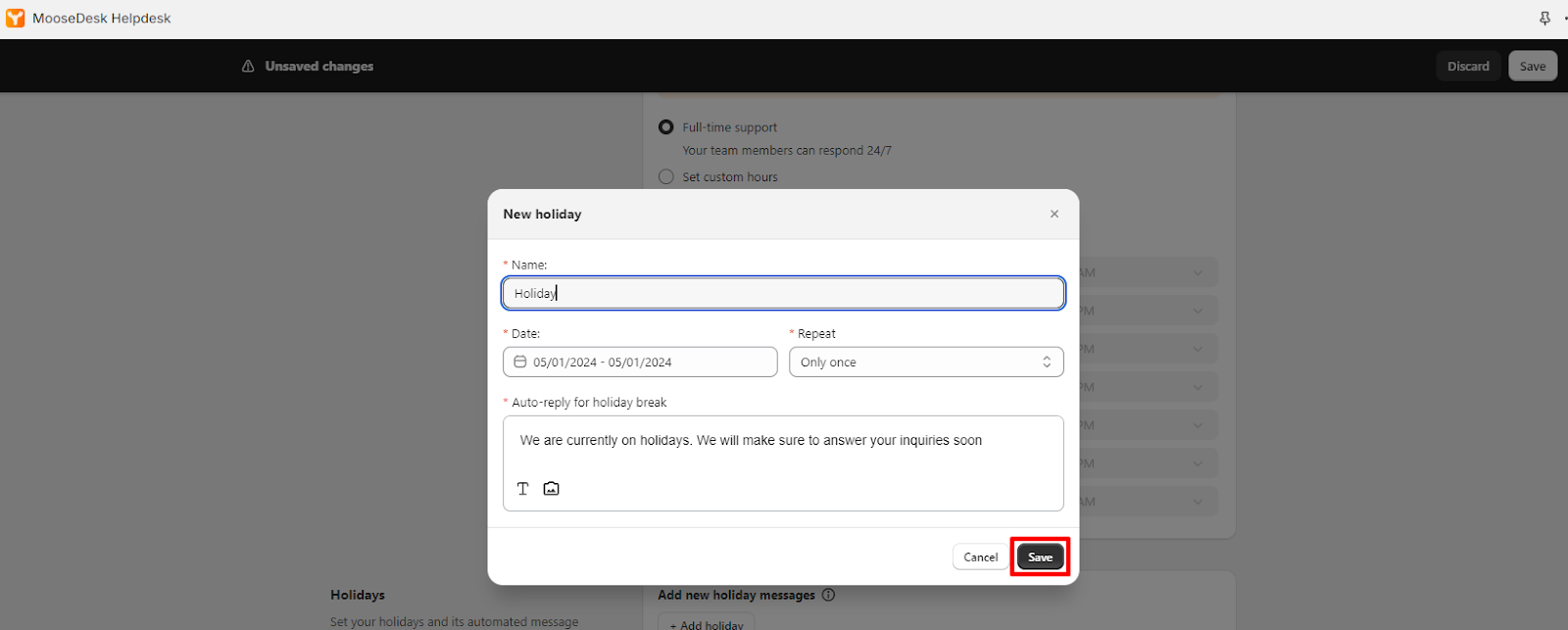
Step 3: Enter detailed information about your holiday and click ‘ Save’
-
Name: Your holiday name
-
Date: You can select a specific date or a date range
-
Repeat: Set up how often the holiday repeats. Currently, we have three options:
- Only once: The holiday will occur only one
- Every month: The holiday repeats every month, on the same date or date range
- Every year: The holiday repeats every year, on the same date or date range
-
Auto-reply for holiday break: Set up an auto-reply message for when customers email you during holidays
Step 4: Remember to click ‘Save’ again in the save bar to apply your changes
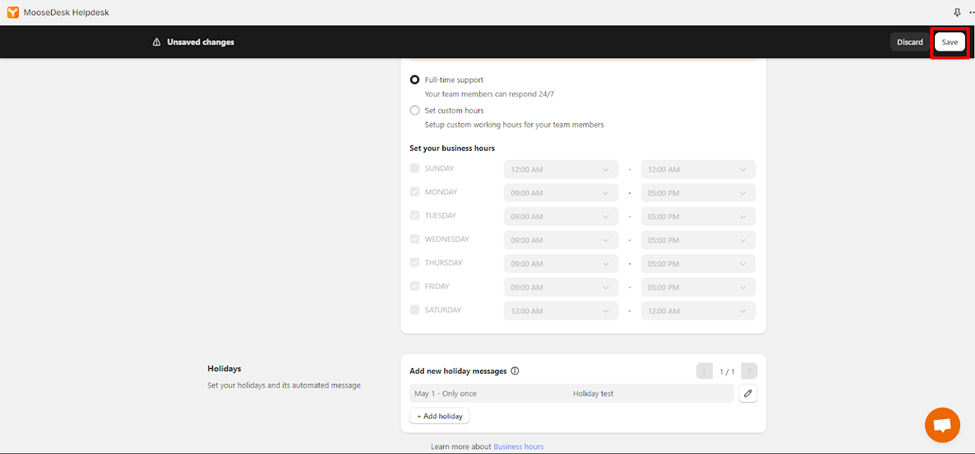
After you are done, your holidays will be saved in the section and you can edit them from there.
Visual Setup Guide: MooseDesk Video Tutorials
How to set business hours and holidays with automated messages - YouTube
Tap to unmute
How to set business hours and holidays with automated messages MooseDesk - Shopify Helpdesk
MooseDesk - Shopify Helpdesk43 subscribers
Support channels
If you ever need assistance, visit our Help Center for comprehensive guides or watch detailed video tutorials on our Youtube channel.
At MooseDesk, we’re always here to help. Our dedicated email and live chat teams are available around the clock. Drop us an email at help@moosedesk.com, or click the Live Chat icon located at the bottom left corner of the MooseDesk app, our official website, and even within this Help Center.
Was this article helpful?
How can we help?
Name: *
Email: *
Message: *
How to set business hour in MooseDesk How to invite members to MooseDesk
Powered by BetterDocs
Unlock the potential of great customer service. Together.
Free plan available. No credit card required.
1-min setup. 24/7 Support.
Feel unsure? Book a demo
hello world
Need help?
Email help@moosedesk.com — we usually reply in minutes.