
This article will help you understand how to write, edit and publish an FAQ articles in MooseDesk.
MooseDesk Article is a feature created to make you easily compose answers for frequently asked questions.
After creating and publishing articles, they will be automatically added to your chosen FAQ template.
Create and publish an article in MooseDesk
Step 1: Go to FAQ Builder > Choose Articles tab.
To create an article, ensure there is an existing category to which the article belongs. You can either create a new category or edit an existing category to add your article.
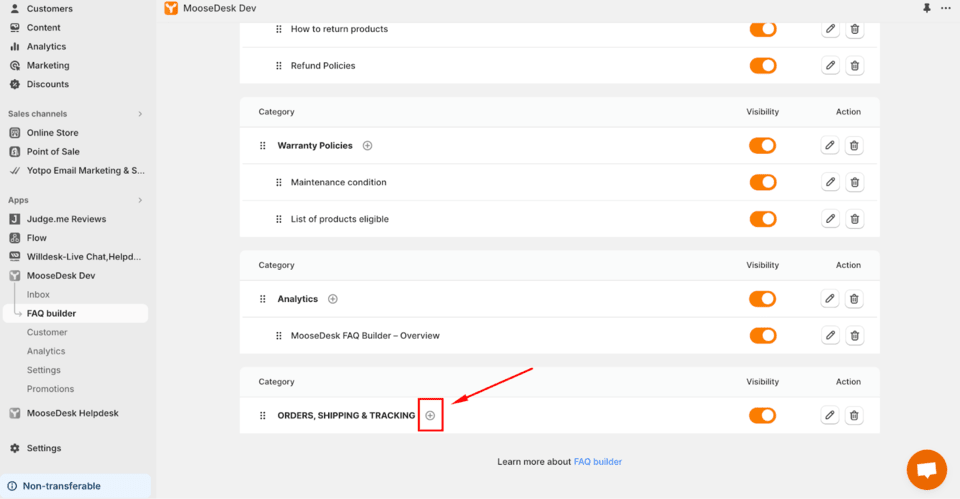
Step 2: Click the + icon in the category where you want to add a new article
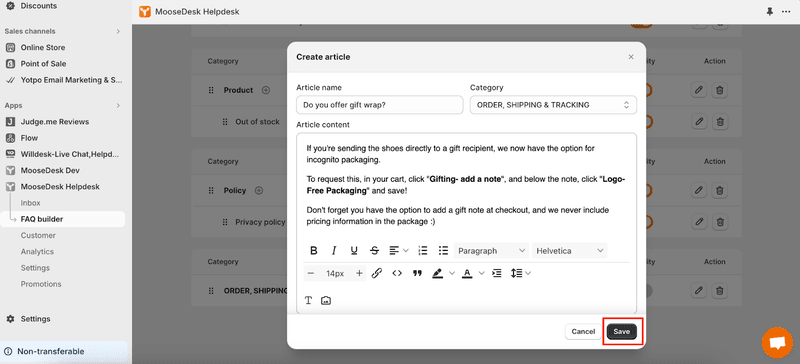
Step 3: Fill in the information for your new article > Click Save. Your article will automatically be published along with its category.
Edit an article in MooseDesk
-
Step 1: Click Edit
 icon of the article you want to edit > Choose Edit
 -
Step 2: Edit the article as you like and click Save
Publish/unpublish an article in MooseDesk
To publish or unpublish an FAQ article, turn the toggle on or off for the article.
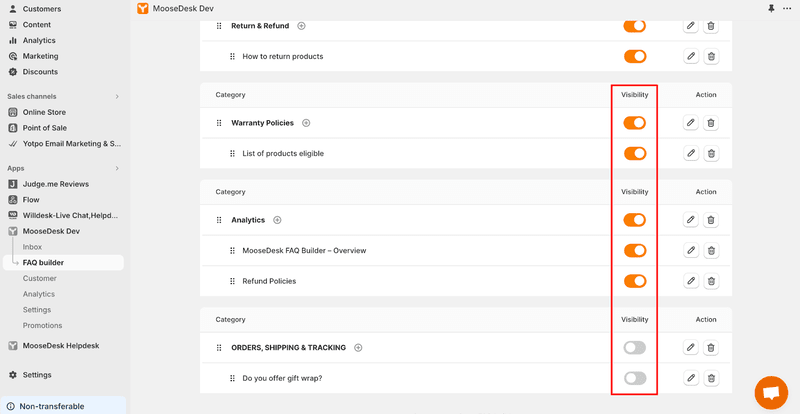
Note: If your category has only one article, unpublishing that article will also unpublish the entire category.
Delete an article in MooseDesk
There are 02 ways to delete articles in MooseDesk.
Method 1: Delete a single article
-
Step 1: Click on Delete
 icon of the article you want to delete
 -
Step 2: Confirm Delete in the pop-up modal
Method 2: Delete all articles in a specific category
-
Step 1: Click on Delete
icon of the category containing the articles you want to delete -
Step 2: Confirm Delete in the pop-up modal
Note: With both methods, once deleted, the data cannot be recovered.
Support Channels
If you ever need assistance, visit our Help Center for comprehensive guides or watch detailed video tutorials on our Youtube channel.
At MooseDesk, we’re always here to help. Our dedicated email and live chat teams are available around the clock. Drop us an email at help@moosedesk.com, or click the Live Chat icon located at the bottom left corner of the MooseDesk app, our official website, and even within this Help Center.
Was this article helpful?
How can we help?
Name: *
Email: *
Message: *
MooseDesk FAQ Builder – Overview How to create, edit, arrange categories
Powered by BetterDocs
Unlock the potential of great customer service. Together.
Free plan available. No credit card required.
1-min setup. 24/7 Support.
Feel unsure? Book a demo
hello world
Need help?
Email help@moosedesk.com — we usually reply in minutes.